
Creating & Managing Campaigns
Create campaigns, understand campaign types, edit settings, duplicate past launches, and launch.
A campaign is the container for everything in a launch: partners, promo materials, affiliate links, emails, and tracking. This guide covers the campaign lifecycle — creating, setting up, editing, duplicating, and launching. For a guided first-time walkthrough, follow Getting Started instead.
Create A Campaign
Create campaigns from the Campaigns page. For a step-by-step walkthrough, see Getting Started § Create Your Campaign. The form includes:
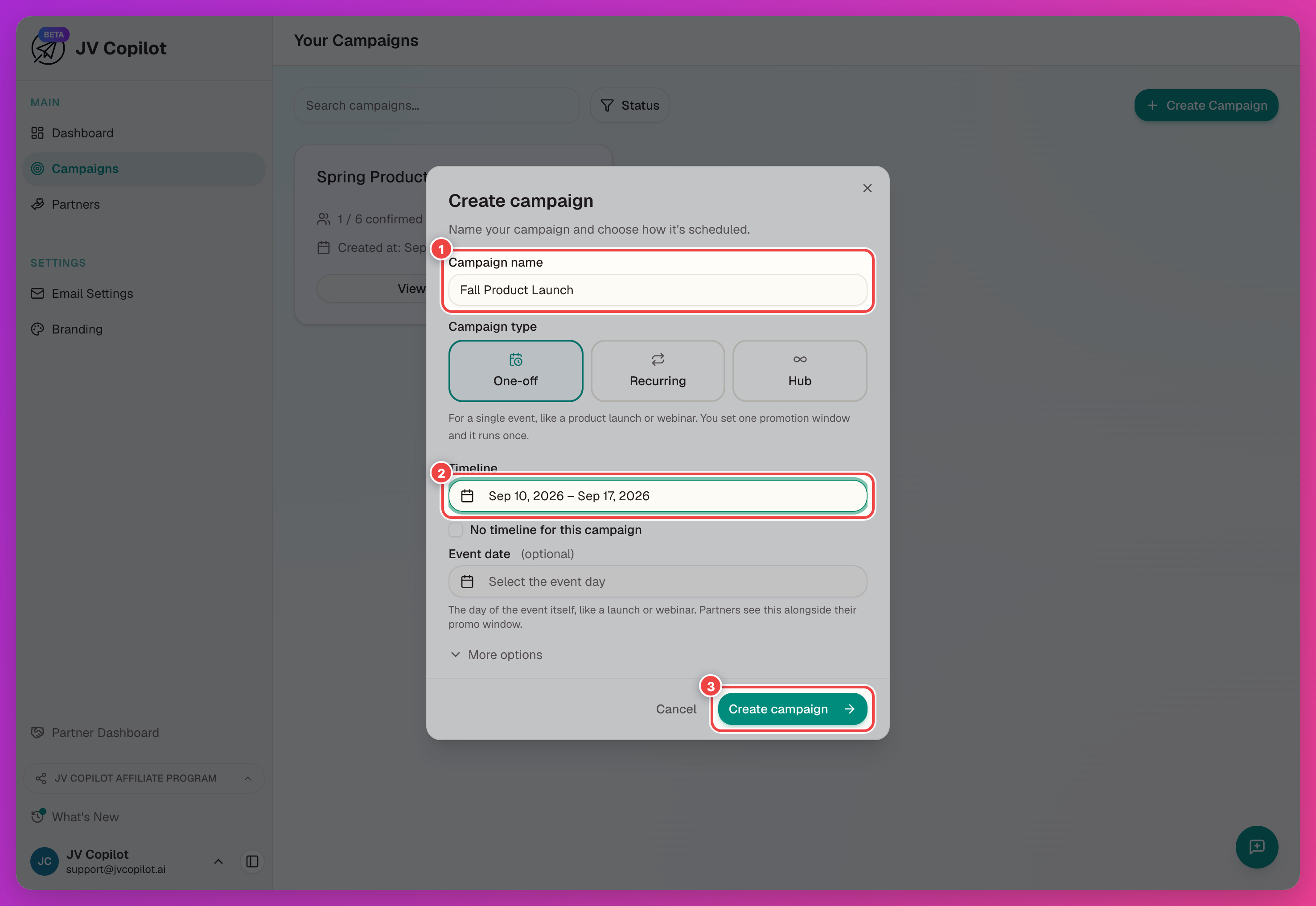
- Timeline — the promotion window partners book their send dates inside. Check No timeline for this campaign to leave it open and add dates later.
- Event date (optional) — the launch or webinar day itself; partners see it alongside their promo window.
- Brand preset (optional) — keeps the campaign connected to a saved preset. Future changes to the preset update the campaign unless you override a field. See Brand Presets.
Campaign Types
- One-off — a single event like a product launch or webinar. One promotion window, runs once. The right choice for most campaigns.
- Recurring — a promotion that repeats on a schedule.
- Hub — an evergreen campaign with no fixed window, useful as a standing home for partners and links.
Your Invite Link
After you create a campaign, JV Copilot shows its join link with a Copy button:
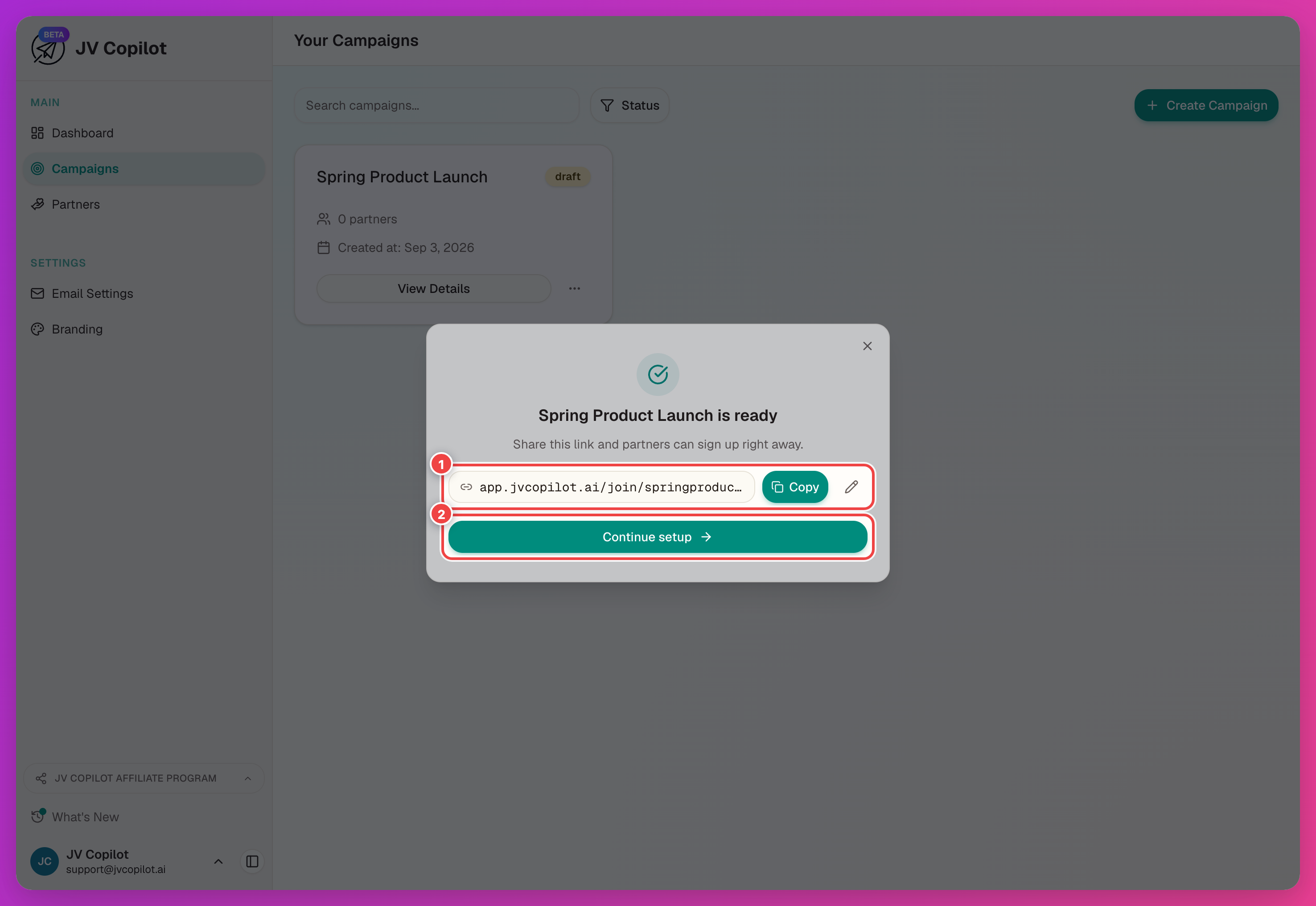
- JV Copilot creates the last part of the link from the campaign name. Click the pencil icon to change it.
- You can also copy or edit the join link from the Invite partners and Get started panels. See Getting Started § Add Partners.
- Your first edit saves immediately. If you change the link again, JV Copilot warns that the previous join and campaign links will stop working. Links sent directly to individual partners will continue to work.
Use the separate Partner campaign link for partners who have already joined and need to return to the campaign. To invite new partners, use the join link.
Set Up The Campaign
Set up the campaign from its draft page. The Get started panel tracks your progress through Partners, Schedule, Partner kit, Affiliate links, and Partner emails. Click Take a tour for a guided walkthrough.
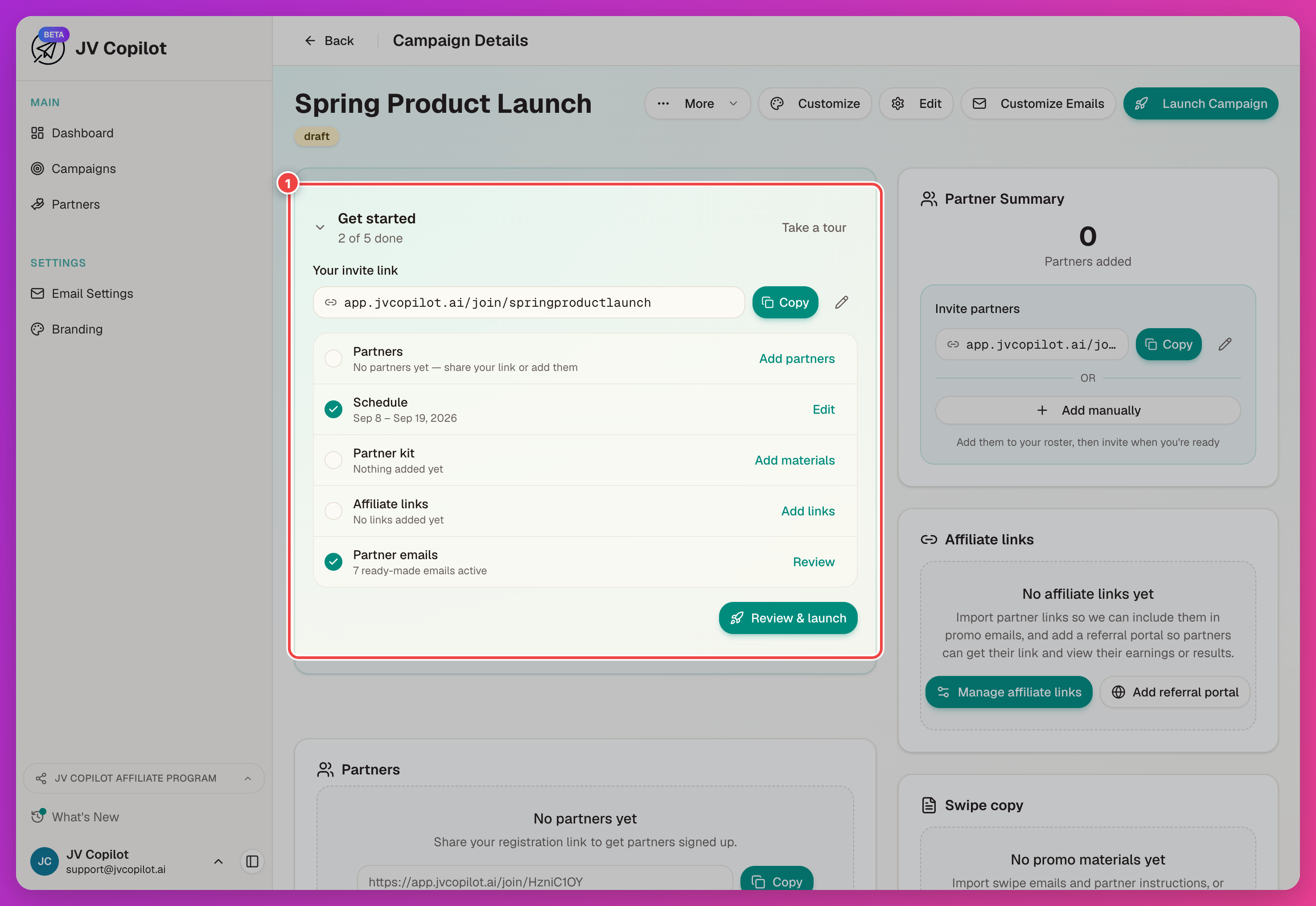
Each piece also has its own guide:
- Partners — share the join link or add partners from your database. See Getting Started § Add Partners and Campaign Partners.
- Promo materials — swipe copy and supporting links/files from the Swipe copy card. See Getting Started § Add Promo Materials.
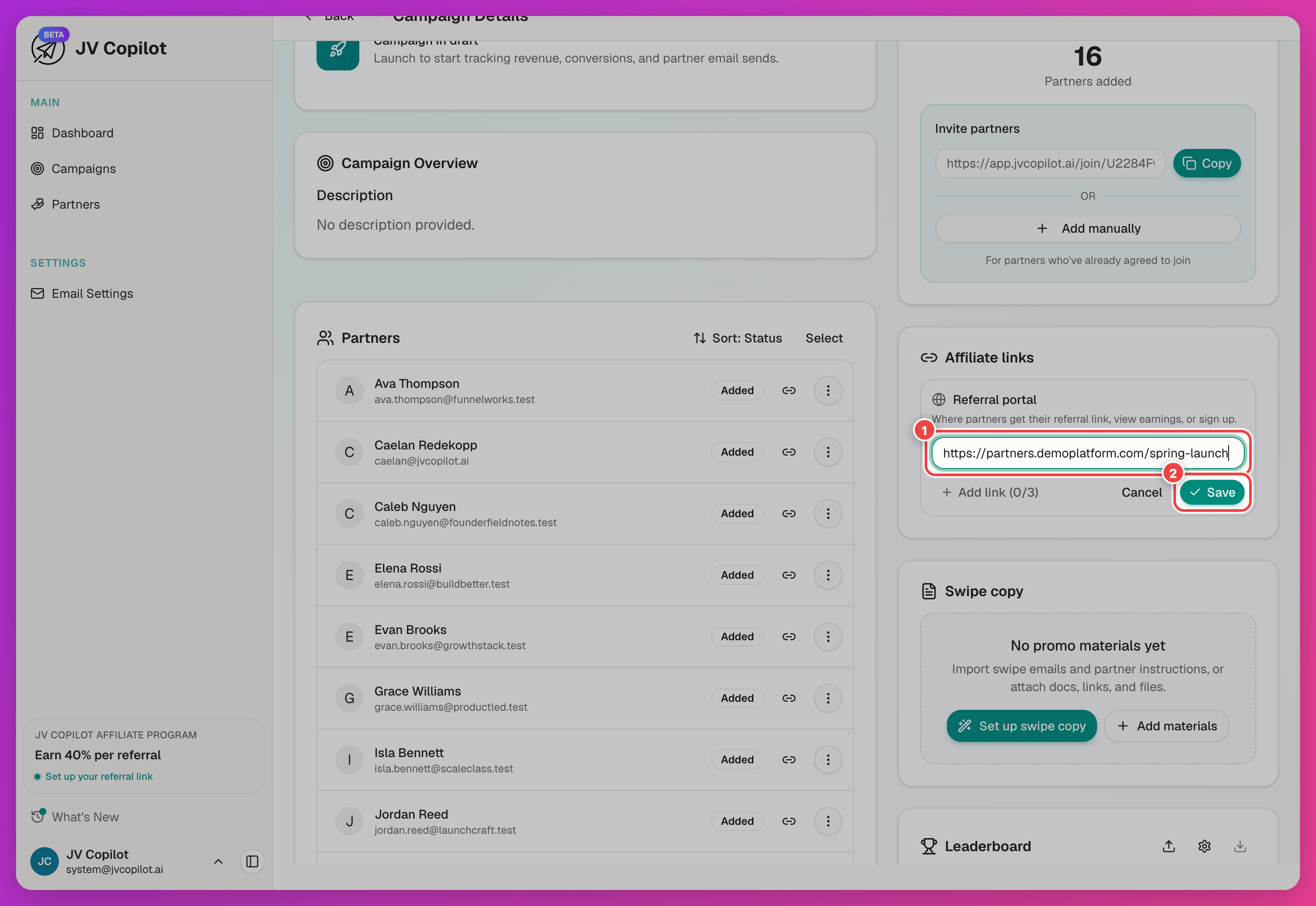
- Affiliate links — per-partner tracking links or a referral portal. See Getting Started § Add Affiliate Links.
If your platform hosts partner links, add the portal so partners fetch their own:
Edit Campaign Materials
Added a material with the wrong label or a broken link? Click the pencil icon on its row to edit its label, URL, or note in place — no need to delete and re-add it.
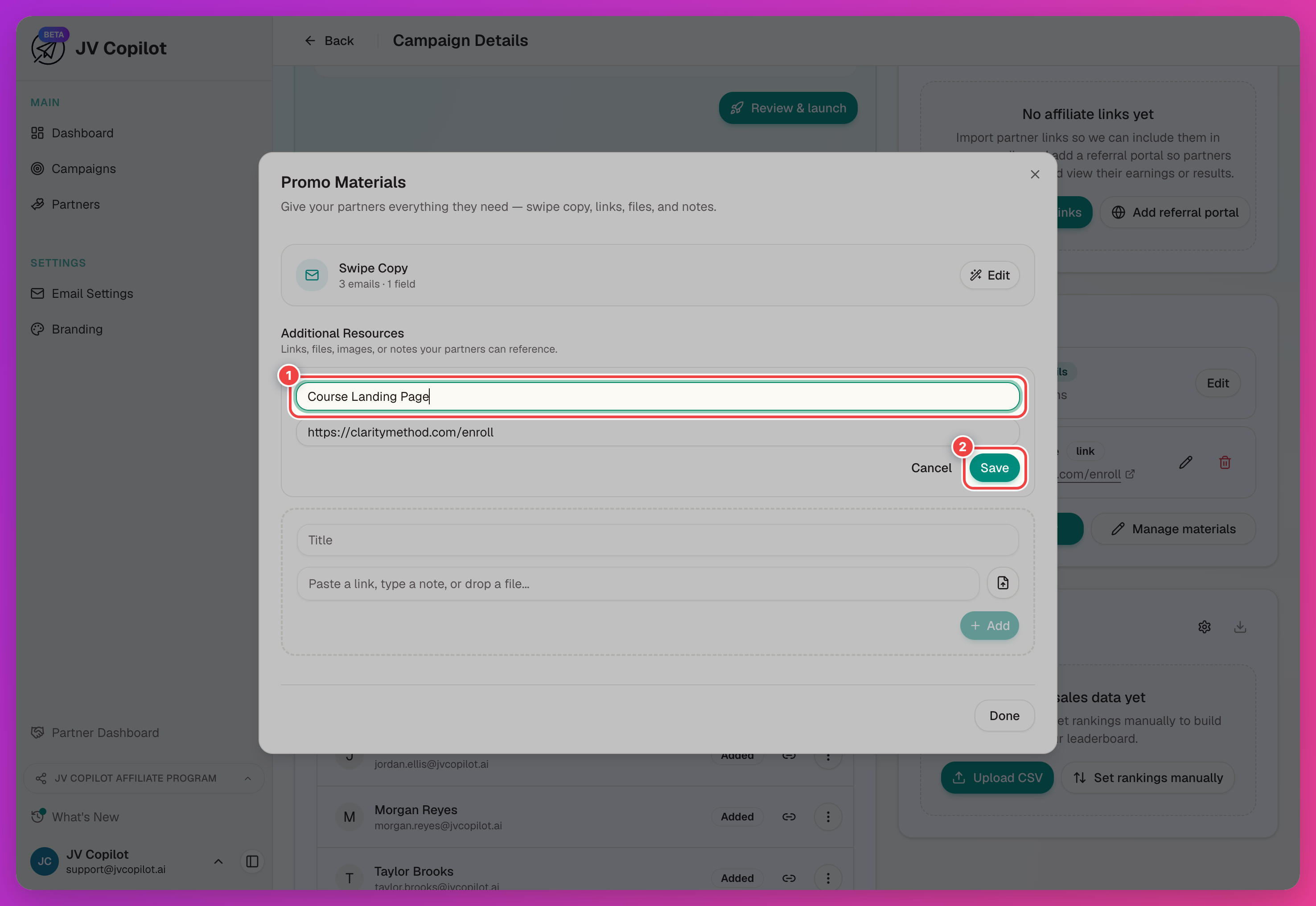
- File materials fall back to showing the original filename if you leave the label blank.
- Every material needs a title. If you leave it blank, JV Copilot asks you to add one.
You can also add, reorder, remove, or duplicate individual emails and social messages after importing swipe copy. Upload a document, paste existing copy, or start with a blank partner kit. See Getting Started § Add Promo Materials.
Edit A Campaign
Click Edit in the campaign header to change the name, description, tracking type, campaign type, timeline, or linked brand preset.
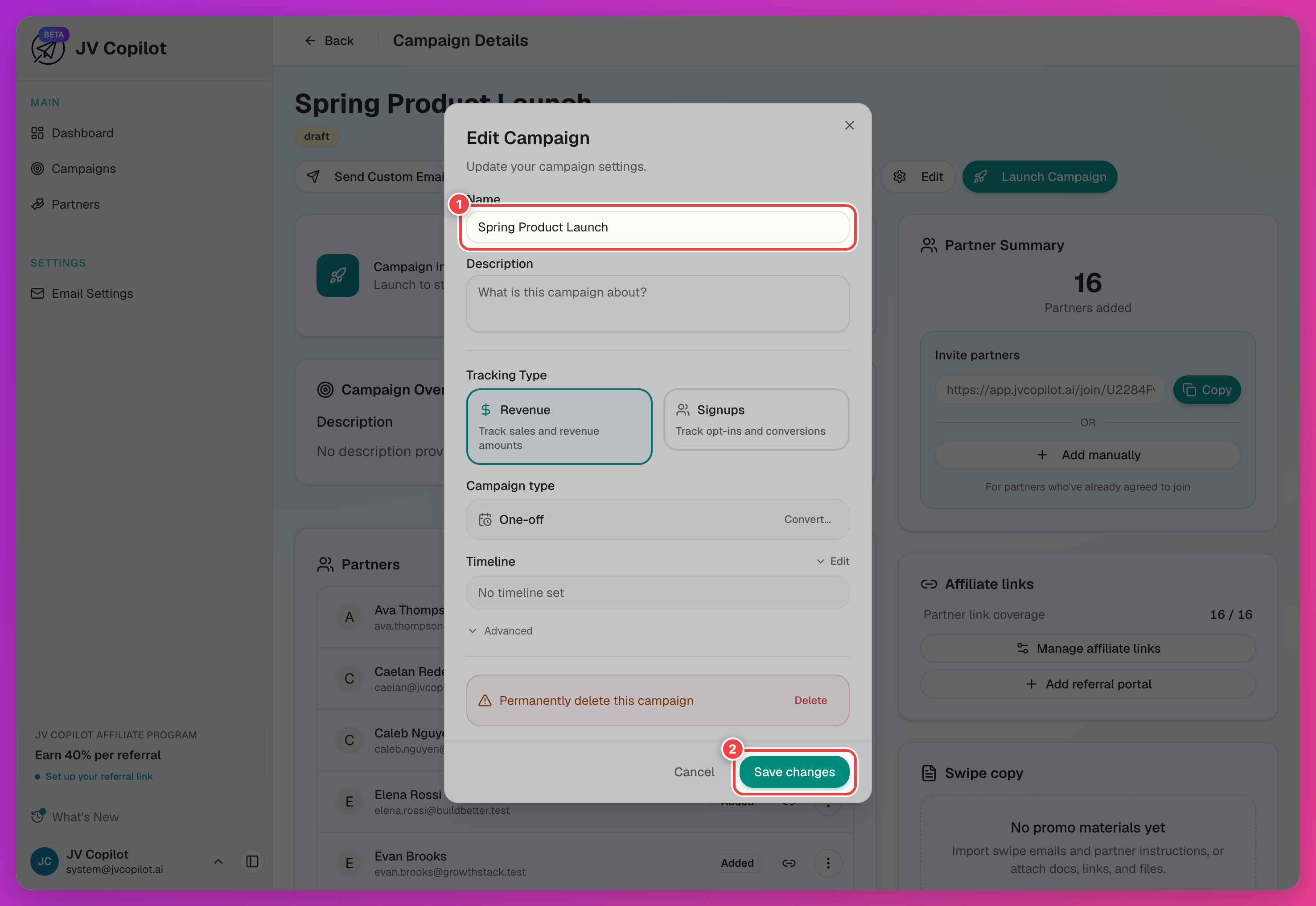
Two things to know before editing a live campaign:
- Changing the timeline on an active campaign can affect partner send dates and reporting.
- The tracking type (Revenue vs. Signups) locks once leaderboard data exists — see Importing Sales Data.
Duplicate A Campaign
To rerun a launch, duplicate the campaign from the Campaigns page — open the actions menu (…) on the campaign's card and choose Duplicate. Emails, materials, and settings carry over.
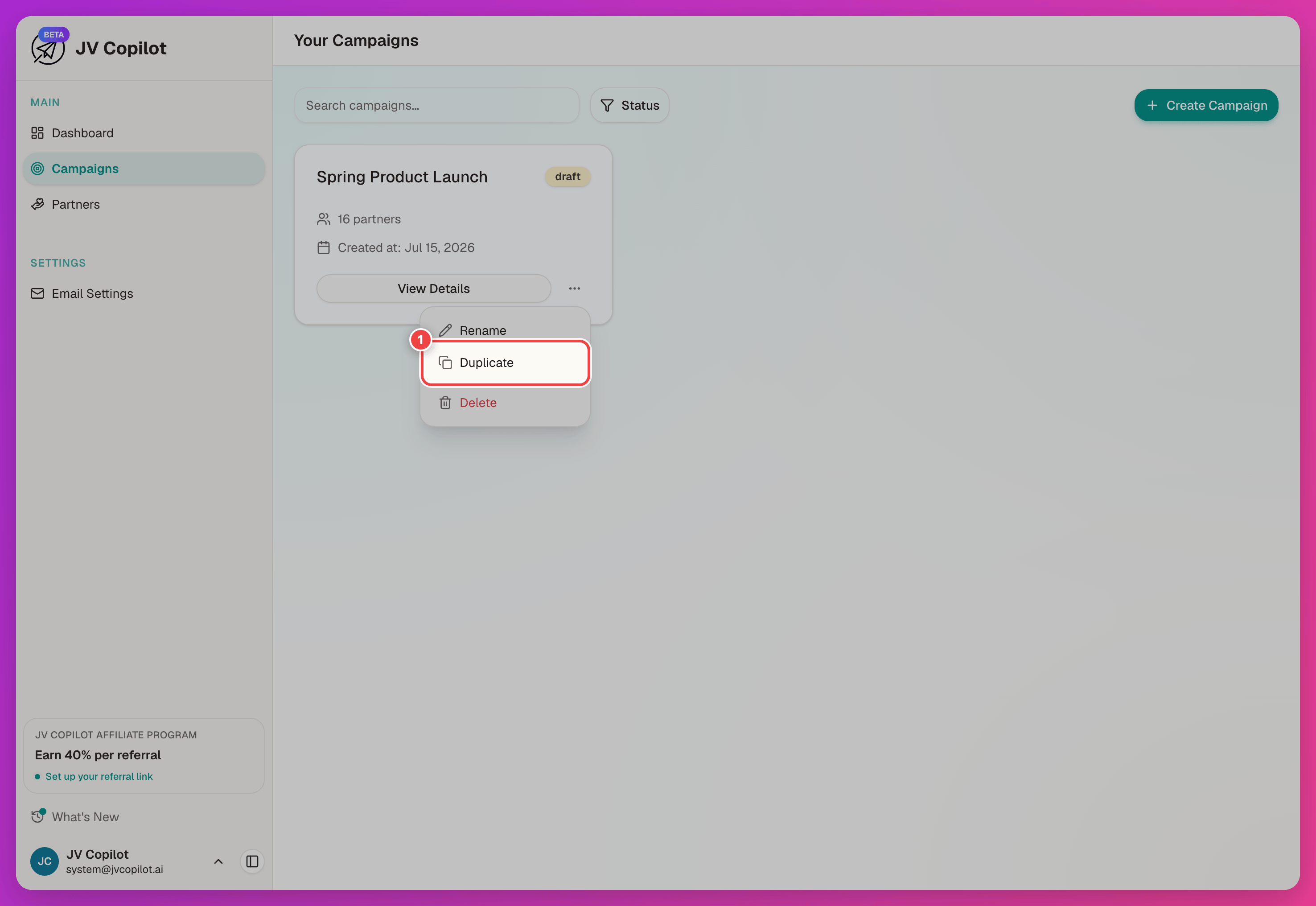
The full duplication options — what carries over, new timelines, copying affiliate links — are covered in Duplicating Campaigns.
Launch
Click Launch Campaign in the campaign header (or Review & launch in the Get started panel — both open the same checklist) and review it. Required items block launch until fixed; Recommended items don't, but partners get better materials when they're done.
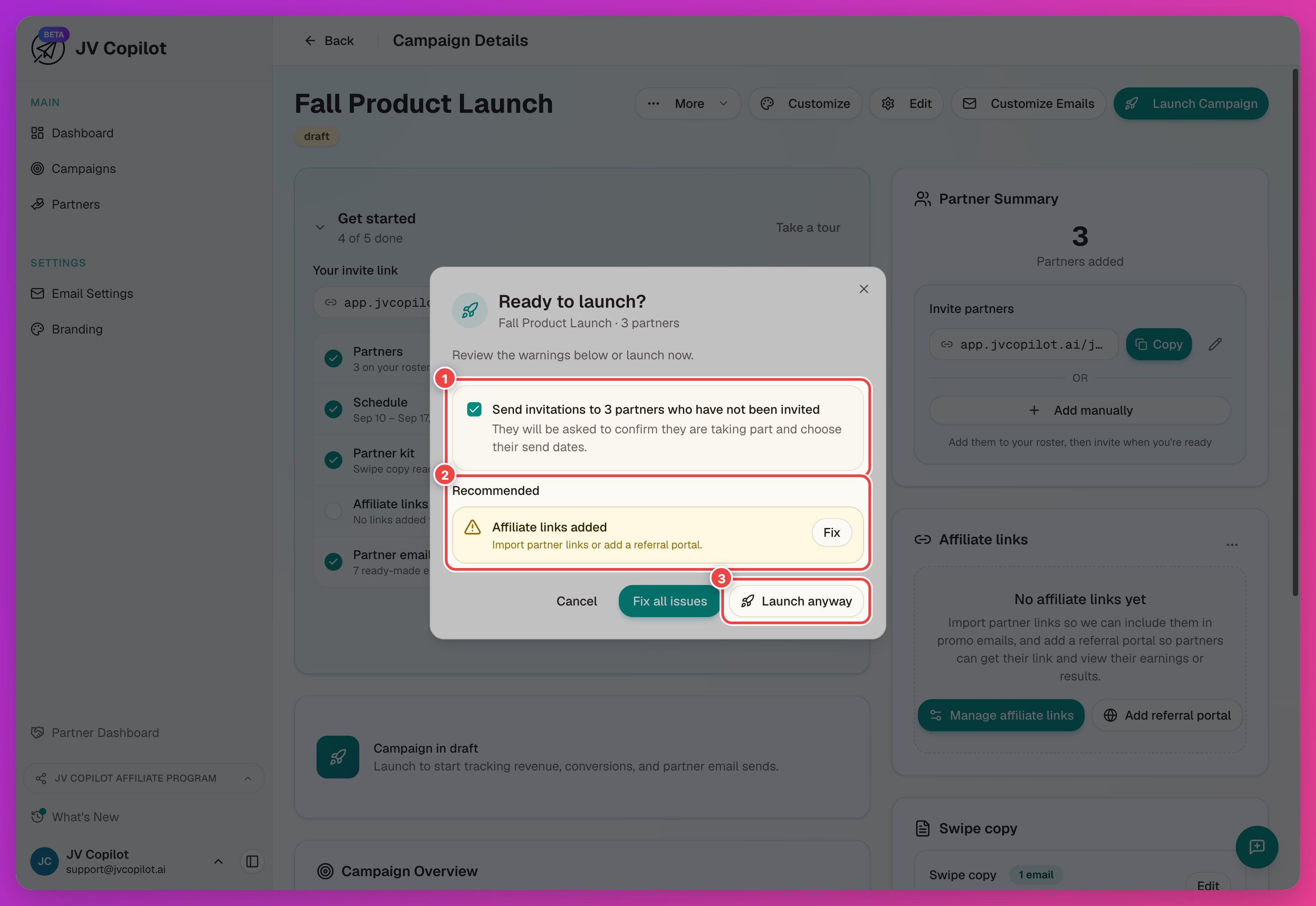
Launch can send partner emails
The launch checklist pre-checks a box to invite everyone you haven't invited yet — anyone already invited or confirmed isn't re-emailed. Check the partner list and intro email before confirming.
After launch the campaign moves from draft to active, and JV Copilot handles invitations, follow-ups, reminders, and tracking. See Running a Live Campaign for what happens next.
Last updated on