GoHighLevel
Sync partners, affiliate links, and commissions between JV Copilot and GoHighLevel Affiliate Manager.
Connect the GoHighLevel sub-account you run your affiliate program in. JV Copilot can add partners to GoHighLevel, bring affiliates in as partners, use GoHighLevel affiliate links, and import sales and commissions.
Setup takes three parts:
- Connect GoHighLevel to JV Copilot.
- Build the affiliate link workflow so partners' links come into JV Copilot.
- Link your campaigns to choose what each one syncs.
Your sub-account needs Affiliate Manager turned on.
Connect GoHighLevel
1. Start The Connection
Open Settings → Integrations → GoHighLevel and click Connect GoHighLevel. GoHighLevel opens. Sign in if asked.
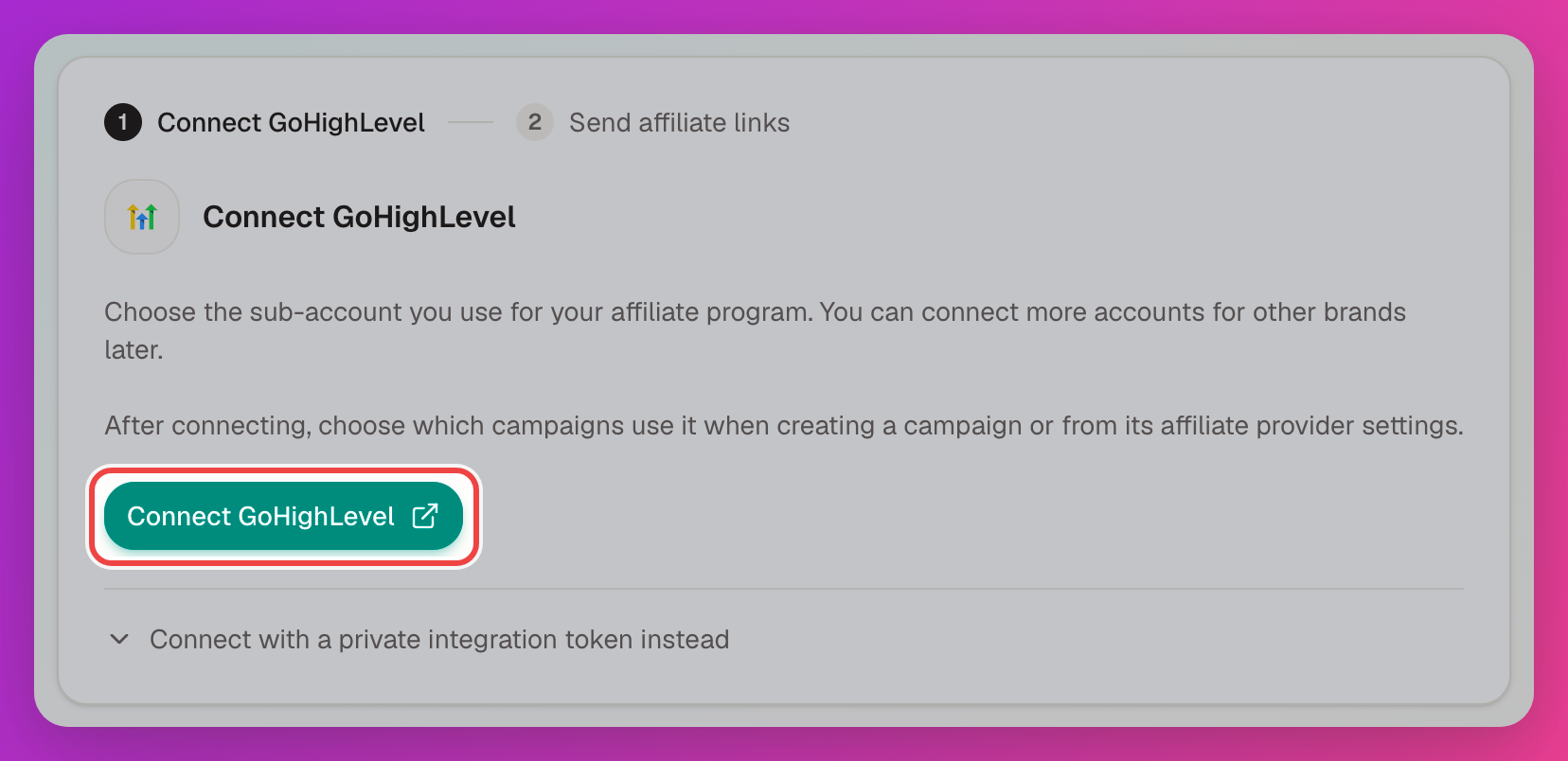
If your account can't install marketplace apps, click Connect with a private integration token instead and follow the instructions to create a token in GoHighLevel.
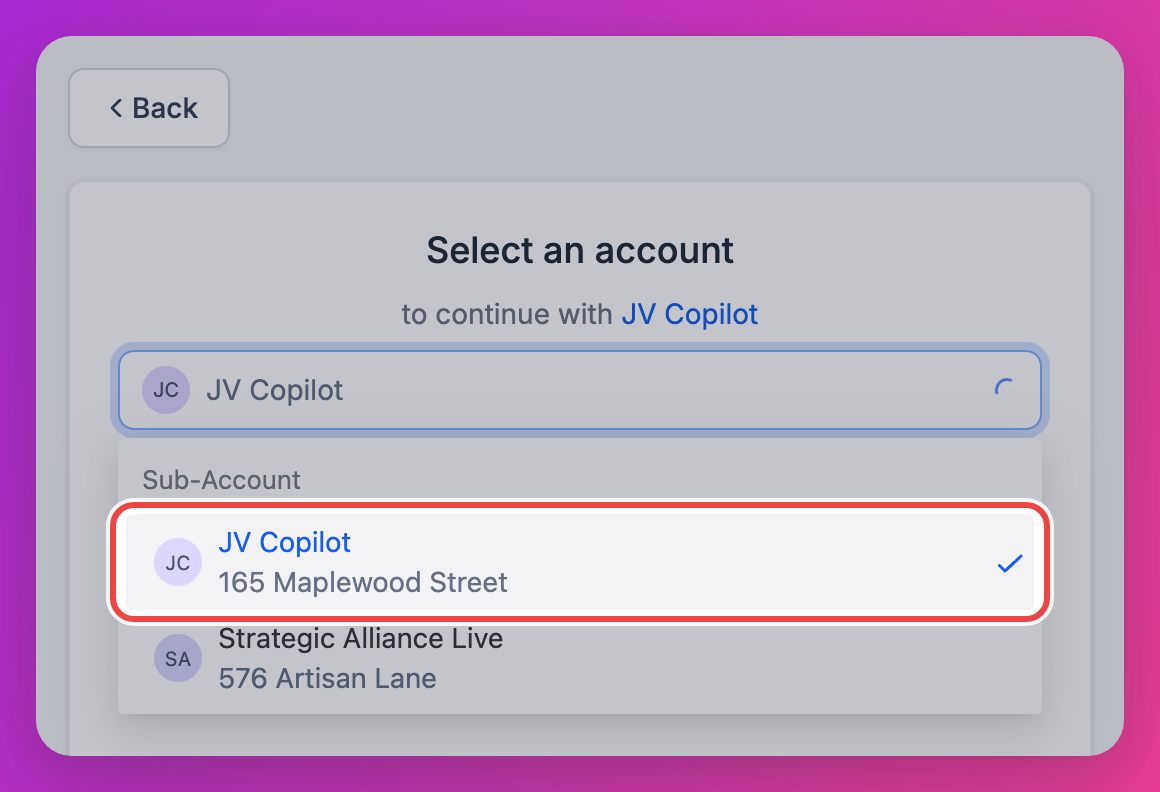
2. Choose Your Sub-Account
Under Select an account, choose the sub-account you run your affiliate program from. Choose a sub-account, not your agency account.
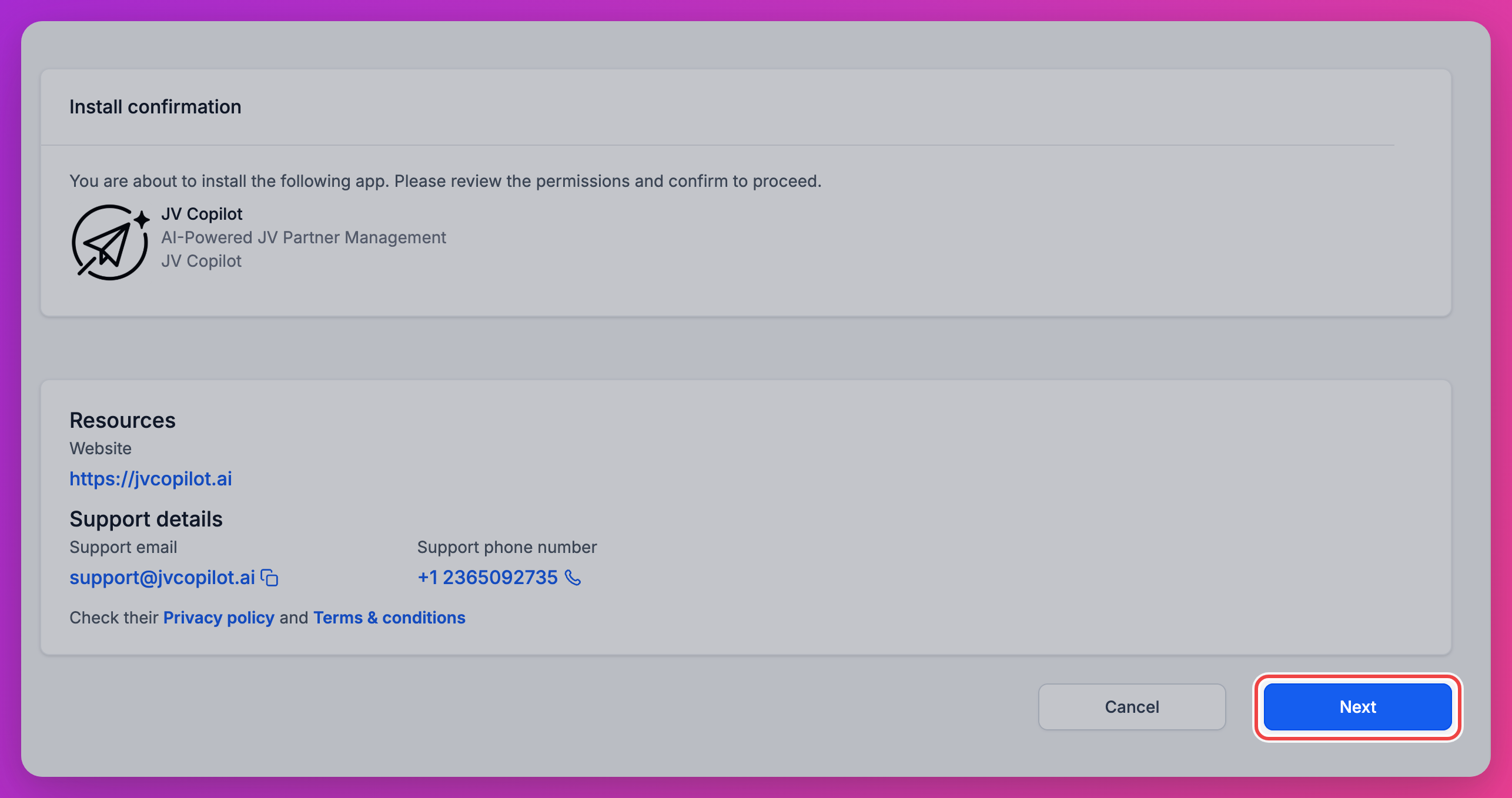
3. Approve The App
On Install confirmation, review the permissions JV Copilot needs, then click Next.
GoHighLevel returns you to JV Copilot, which opens Send affiliate links to JV Copilot. Continue with the affiliate link workflow.
Affiliate Link Workflow
GoHighLevel's API doesn't share affiliate links. Instead, a workflow you build in GoHighLevel sends each partner's link to JV Copilot when they enroll. We recommend setting it up: if you skip it, partners' links won't come over from GoHighLevel, and you'll need to add or import them on the campaign's Partners tab.
GoHighLevel only sends a link the first time an affiliate enrolls in a campaign, so build the workflow before you enroll anyone.
1. Copy Your Webhook URL
In JV Copilot, Send affiliate links to JV Copilot shows your Webhook URL. Click Copy. If you see Create my webhook URL instead, click it first.
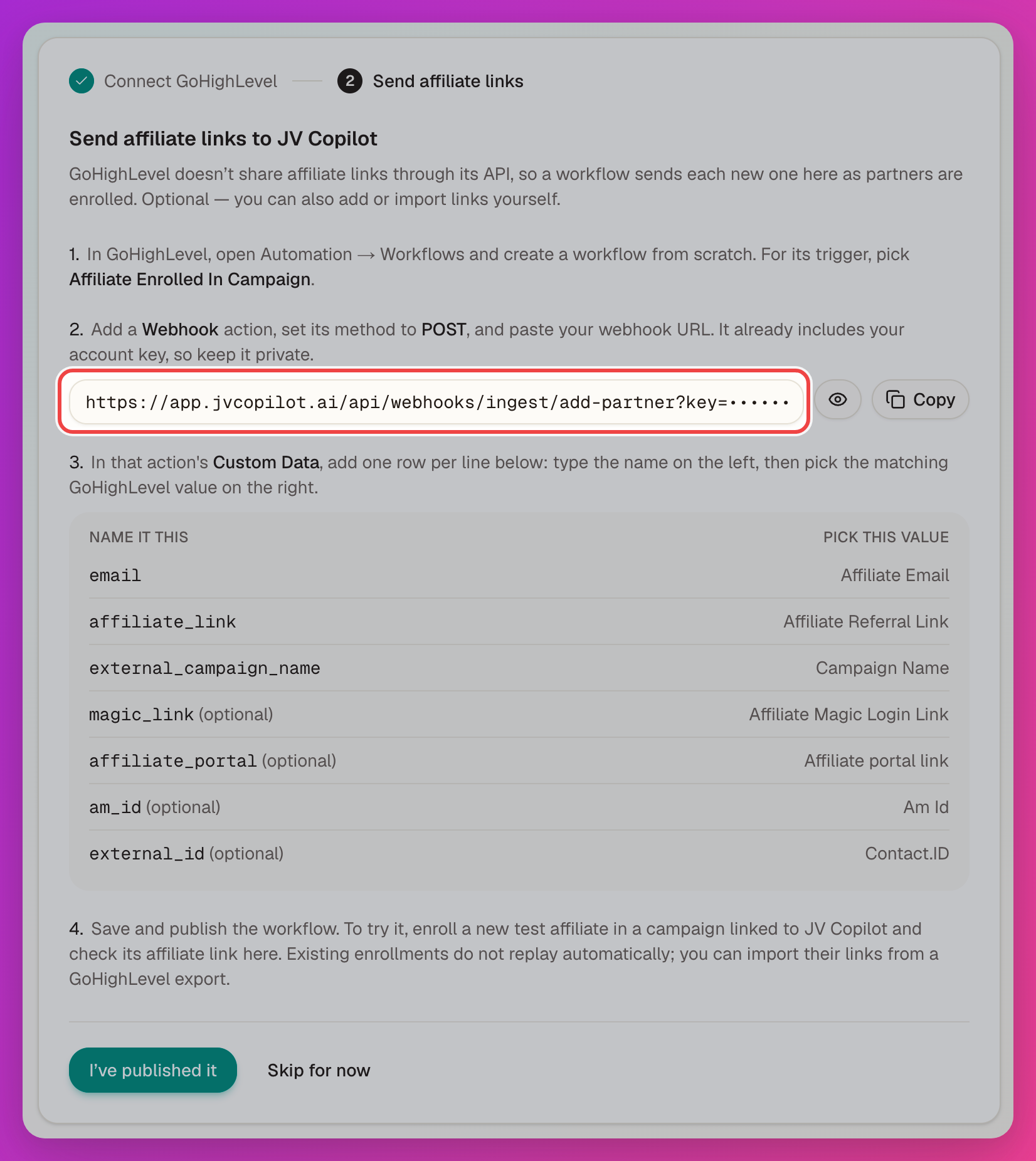
The same steps and URL are on the Affiliate link workflow tab if you come back later. The URL includes your account key, so keep it private.
2. Create The Workflow
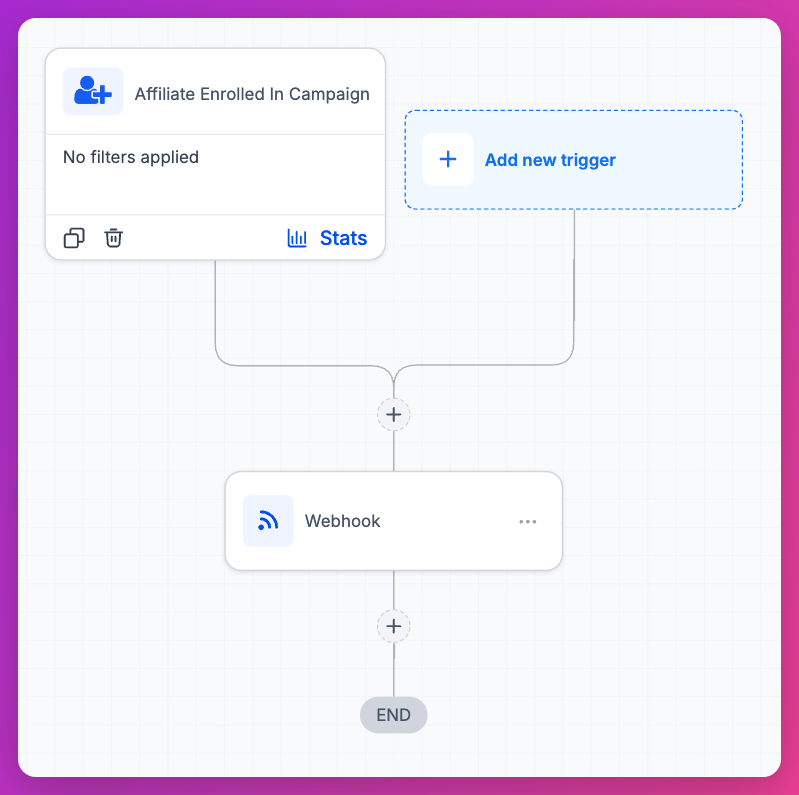
In GoHighLevel, open Automation → Workflows and create a workflow from scratch. Add the trigger Affiliate Enrolled In Campaign with no filters, then add a Webhook action below it.
3. Set Up The Webhook
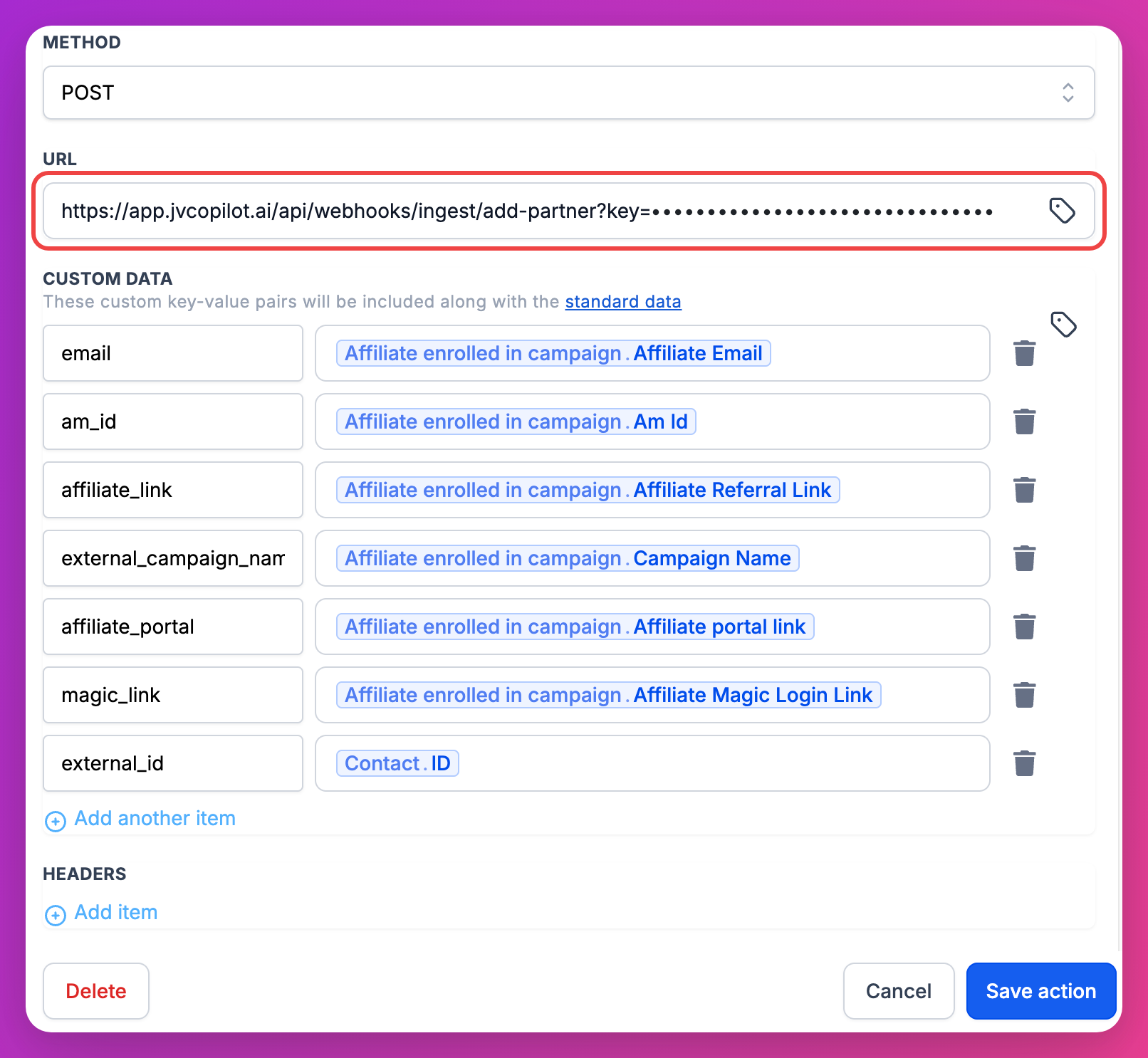
In the Webhook action, set Method to POST and paste your webhook URL into URL. Under Custom Data, add one row per field below: type the key, then pick the value from the value picker.
| Key | Value to pick | Required | Used for |
|---|---|---|---|
email | Affiliate enrolled in campaign → Affiliate Email | Yes | Matching the affiliate to a partner |
affiliate_link | Affiliate enrolled in campaign → Affiliate Referral Link | Yes | The partner's affiliate link |
external_campaign_name | Affiliate enrolled in campaign → Campaign Name | Yes | Matching your JV Copilot campaign by name |
magic_link | Affiliate enrolled in campaign → Affiliate Magic Login Link | Optional | Opening the partner's affiliate portal |
affiliate_portal | Affiliate enrolled in campaign → Affiliate portal link | Optional | Opening the partner's affiliate portal |
am_id | Affiliate enrolled in campaign → Am Id | Optional | Rebuilding the link later |
external_id | Contact → ID | Optional | Finding the partner's contact without searching by email |
4. Publish And Test
Save and publish the workflow. Back in JV Copilot, click I've published it. To finish later, click Skip for now.
To test it, enroll a new test affiliate in a campaign linked to JV Copilot. Once their link arrives, the Affiliate link workflow tab shows Affiliate links are arriving from this workflow.
Affiliates Who Enrolled Earlier
GoHighLevel doesn't resend links for past enrollments. Export the affiliates from Affiliate Manager, then open Import links for existing affiliates on the Affiliate link workflow tab and click Upload GoHighLevel export.
Link A Campaign
New campaigns aren't linked to GoHighLevel until you choose an affiliate provider. Each campaign uses one provider and one GoHighLevel campaign.
- When you create a campaign, set Affiliate provider to GoHighLevel. For an existing campaign, open Affiliate provider on the campaign.
- If you've connected more than one account, choose the Account.
- Choose the Affiliate campaign in GoHighLevel.
- Turn on what you want to sync. The switches start from the account's defaults.
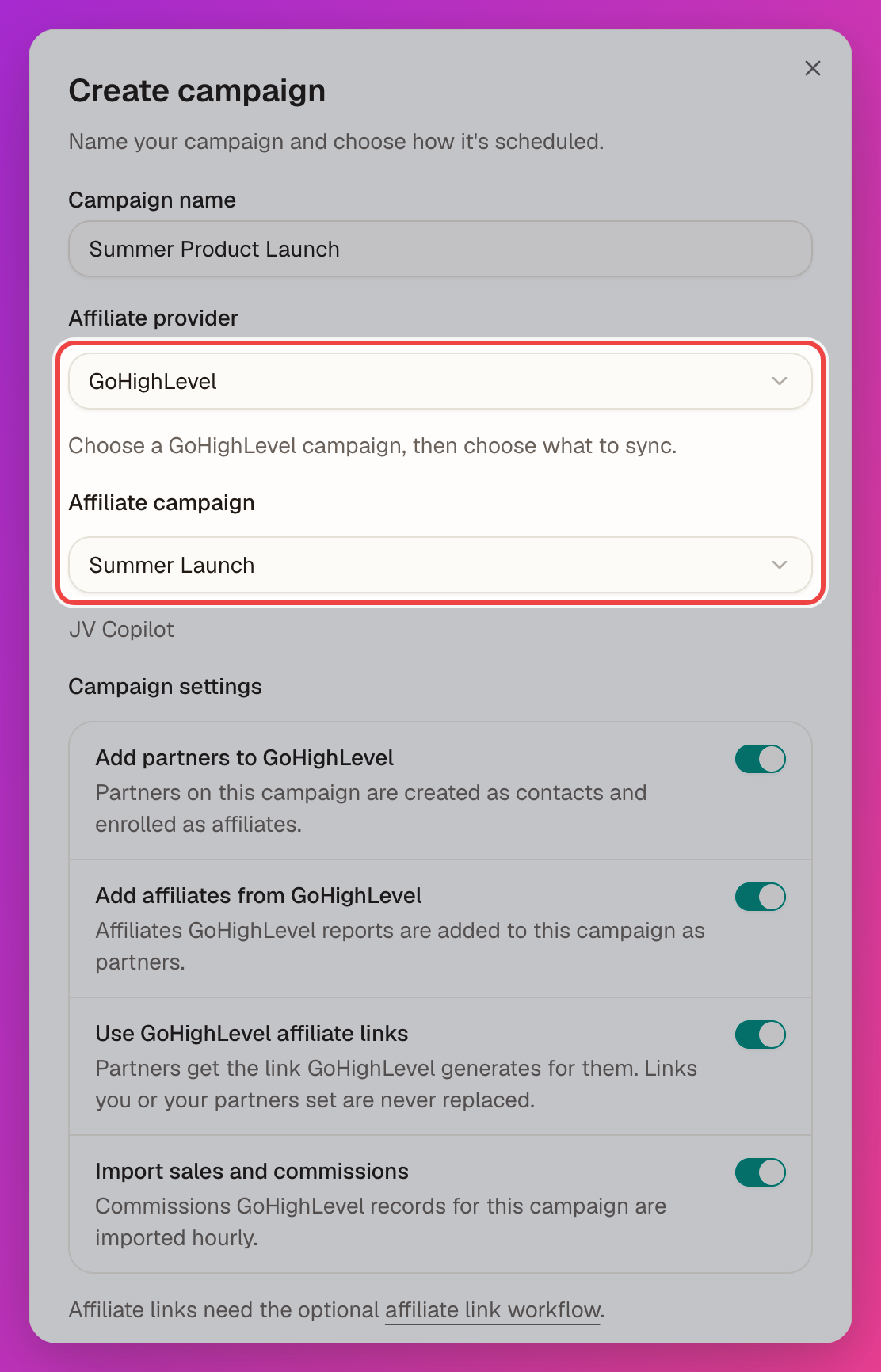
To change a linked campaign, open Affiliate provider on the campaign. Choose Use my default, Set for this campaign, or Off, or click Change provider. You can also add the campaign's existing partners to GoHighLevel from there.
What Syncs
| Option | Direction | What it does |
|---|---|---|
| Add partners to GoHighLevel | JV Copilot → GoHighLevel | Creates partners as tagged contacts and enrolls them as affiliates. |
| Add affiliates from GoHighLevel | GoHighLevel → JV Copilot | Adds GoHighLevel affiliates to the campaign as partners. |
| Use GoHighLevel affiliate links | GoHighLevel → JV Copilot | Fills in partners' affiliate links. Needs the affiliate link workflow. Links you or your partners set are never replaced. |
| Import sales and commissions | GoHighLevel → JV Copilot | Imports sales and commissions every hour. |
Set the defaults on the Defaults tab. They apply to linked campaigns set to Use my default. Defaults also sets the partner tag (jvc-partner by default), optional campaign and stage tags, and whether partners are added to GoHighLevel as soon as you add them or once they accept.
Check Activity
The Overview tab shows campaigns matched, partners synced, affiliate links received, and commissions imported. You can also match GoHighLevel campaigns to JV Copilot campaigns there.
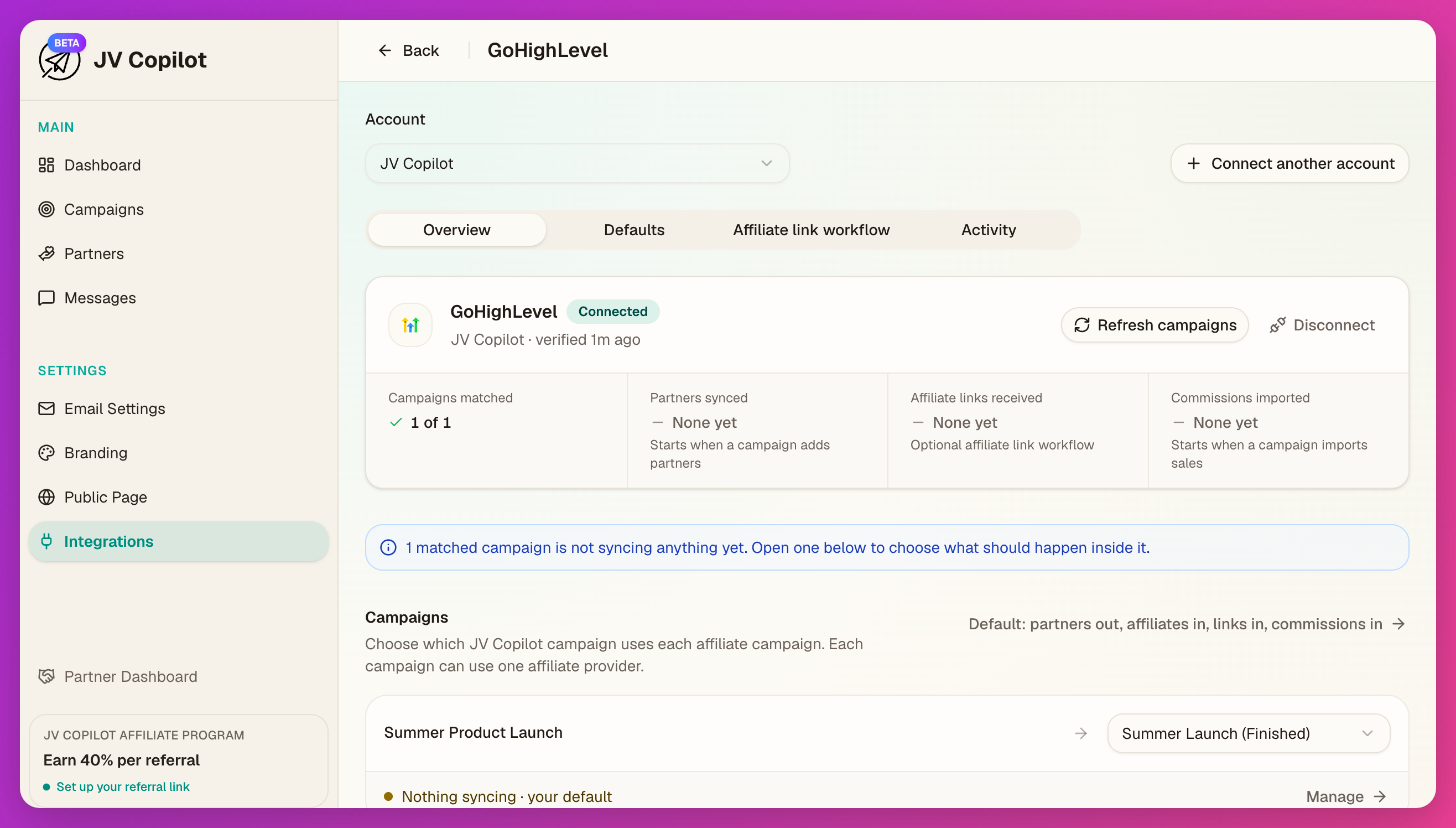
The Activity tab lists recent events and every call made to GoHighLevel, with fixes for any that failed. If an account shows Needs reconnecting, click Connect again and pick the same sub-account.
Connect More Accounts
Connect one GoHighLevel account for each brand or sub-account you run affiliates from. Click Connect another account, then choose the other sub-account. Switch between accounts with the Account menu.

Each account has its own tabs, defaults, and webhook URL, so build a separate affiliate link workflow in each sub-account.
Disconnect
Choose the account in the Account menu, then click Disconnect on the Overview tab. JV Copilot stops sending to and accepting from that account, including its workflow. Partners, links, and commissions already in JV Copilot are kept.
A disconnected account stays in the Account menu marked reconnect needed. To reconnect, choose it and click Connect GoHighLevel, then pick the same sub-account. If you connected with a private integration token, you'll need the token again.
Troubleshooting
- "That looks like an agency-level account": start again and choose the sub-account you run your affiliate program from.
- "Affiliate Manager is not enabled": turn on Affiliate Manager for that sub-account in GoHighLevel, then connect again.
- Partners aren't getting affiliate links: check that the workflow is published and its URL matches the one on the Affiliate link workflow tab. Links are only sent when a partner first enrolls; import links for anyone enrolled earlier.
- "This affiliate campaign is already linked to another campaign": each GoHighLevel campaign can link to one JV Copilot campaign. Unlink it there first.
- Sales may be counted twice: sales without a transaction ID can't be matched. Check the warning on the Overview tab.
- Built the workflow before October 2026? Workflows that send the key in an
account_keyrow or anx-jvcopilot-secretheader keep working.
Last updated on