
Swipe Copy & Docs
Import or write launch docs, prepare copyable emails, and share files and links with partners.
Open a campaign's Swipe copy tab to manage the copy and resources partners use to promote it. The tab separates Docs, Files, and Links.
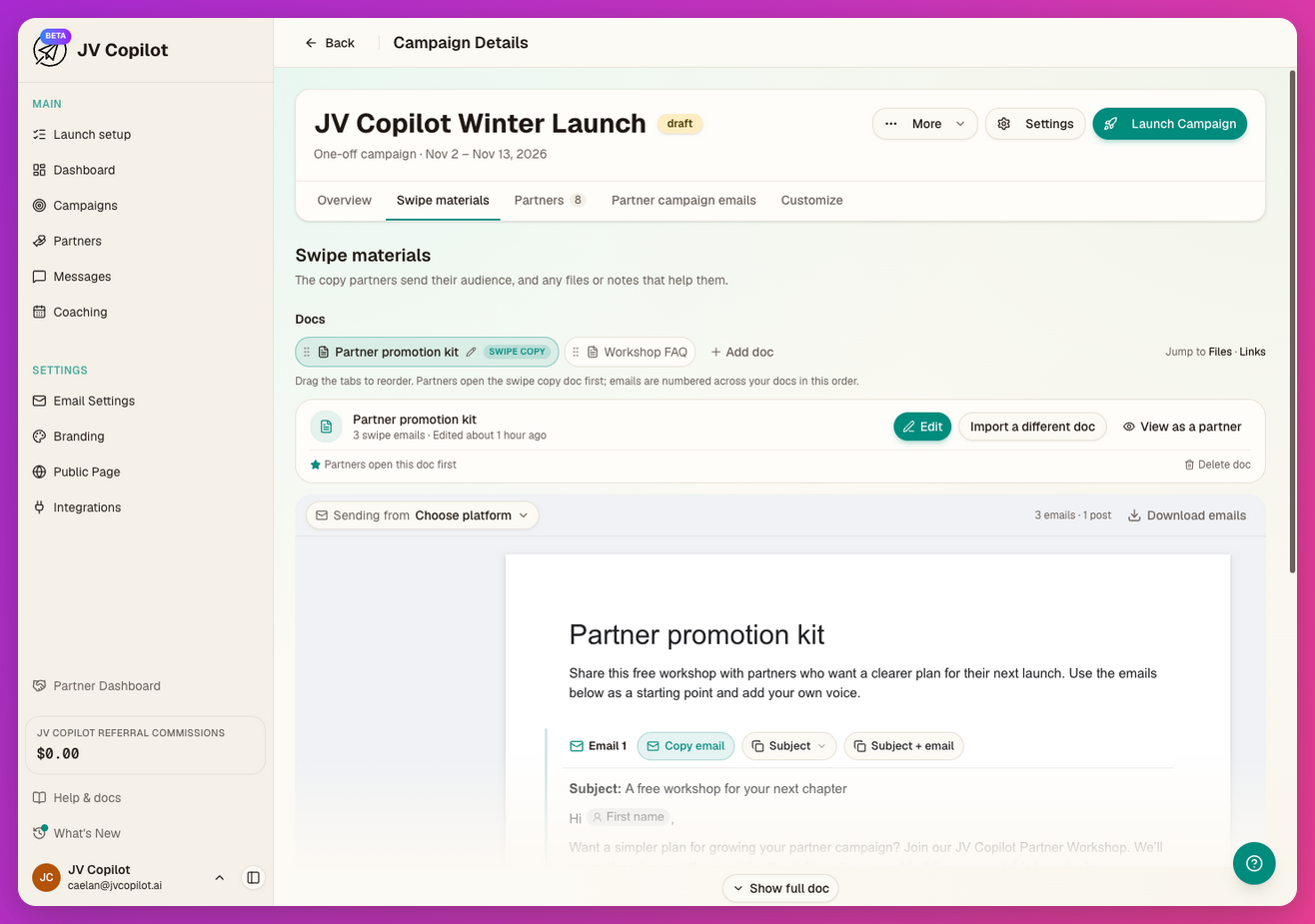
Import A Launch Doc
-
Choose Import swipe copy, or use Add doc → Import a doc to add another document.
-
Paste a Google Doc link or the contents of your doc. You can also upload a Word, PDF, or text file.
-
Click Read with AI.
-
Review the doc and detected emails, then publish it for partners.
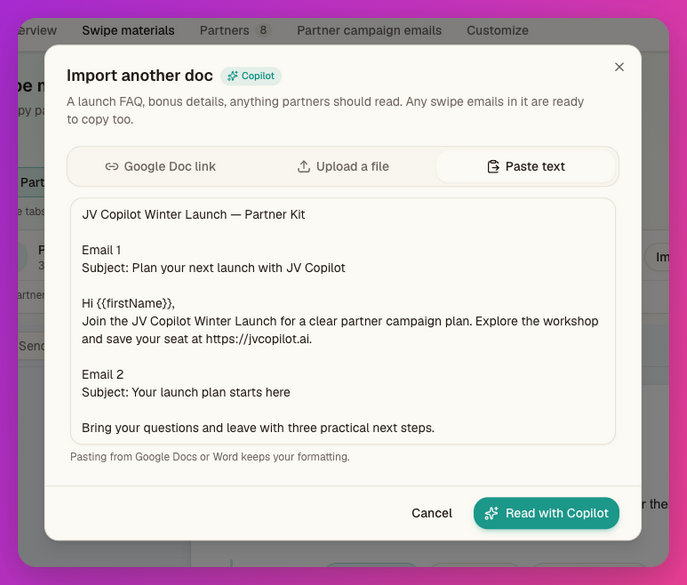
Pasting from Google Docs or Word keeps formatting. If a Google Doc cannot be read, make it viewable by anyone with the link and try again.
Write And Edit Here
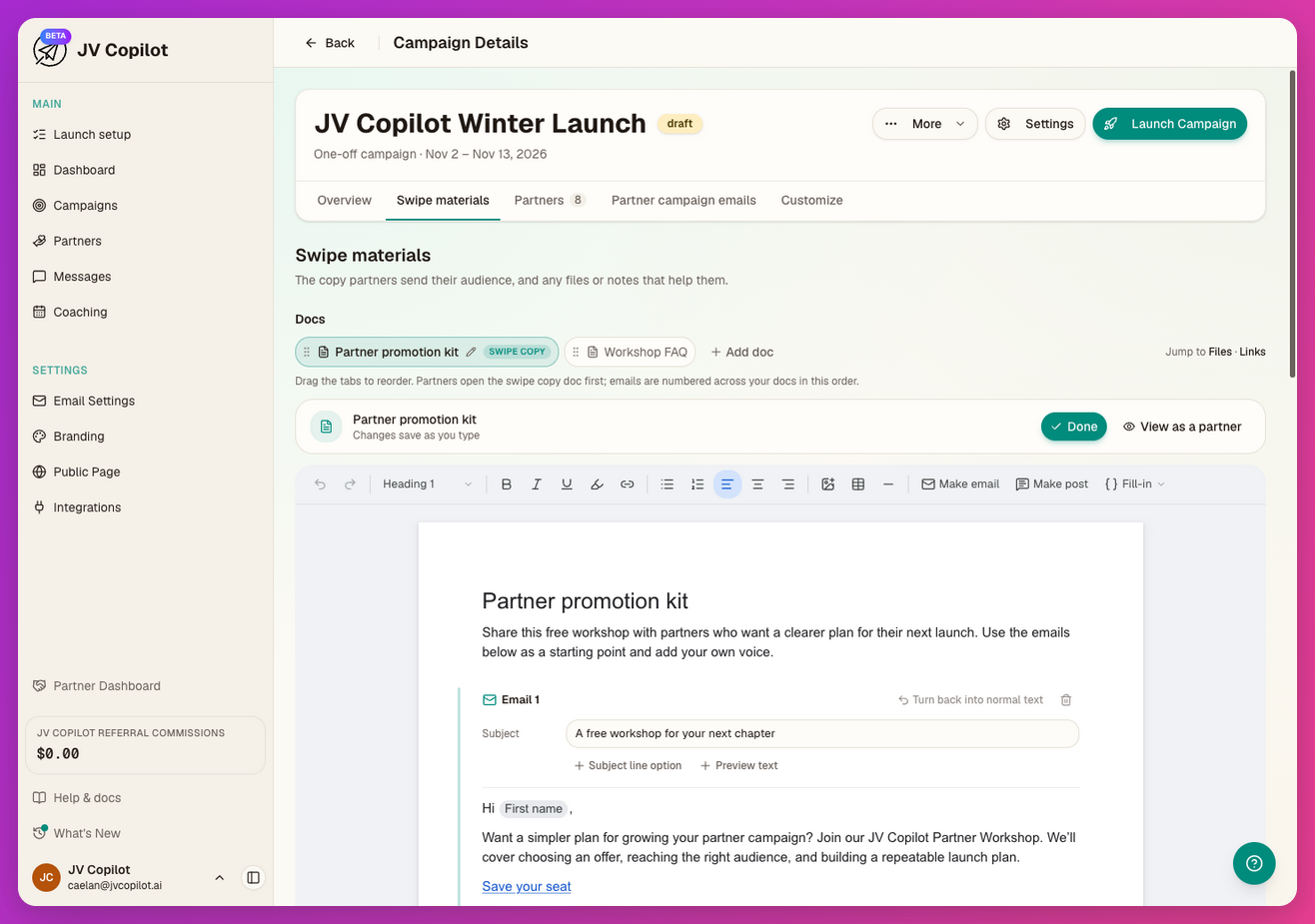
No doc yet? Choose Write it here for a doc to fill in with launch details, emails, and social posts, or Start with just emails to write each email's subject, preview, and body. For an existing doc, click Edit.
Use the editor to change text, add images, and mark sections as emails or social posts. Click Done when finished. Check the save status before leaving; partners see saved changes.
Keep Several Docs Together
Use Add doc for an FAQ, bonus details, or another launch document. A campaign can hold up to five docs. Partners switch between them, and email numbering continues across the docs.
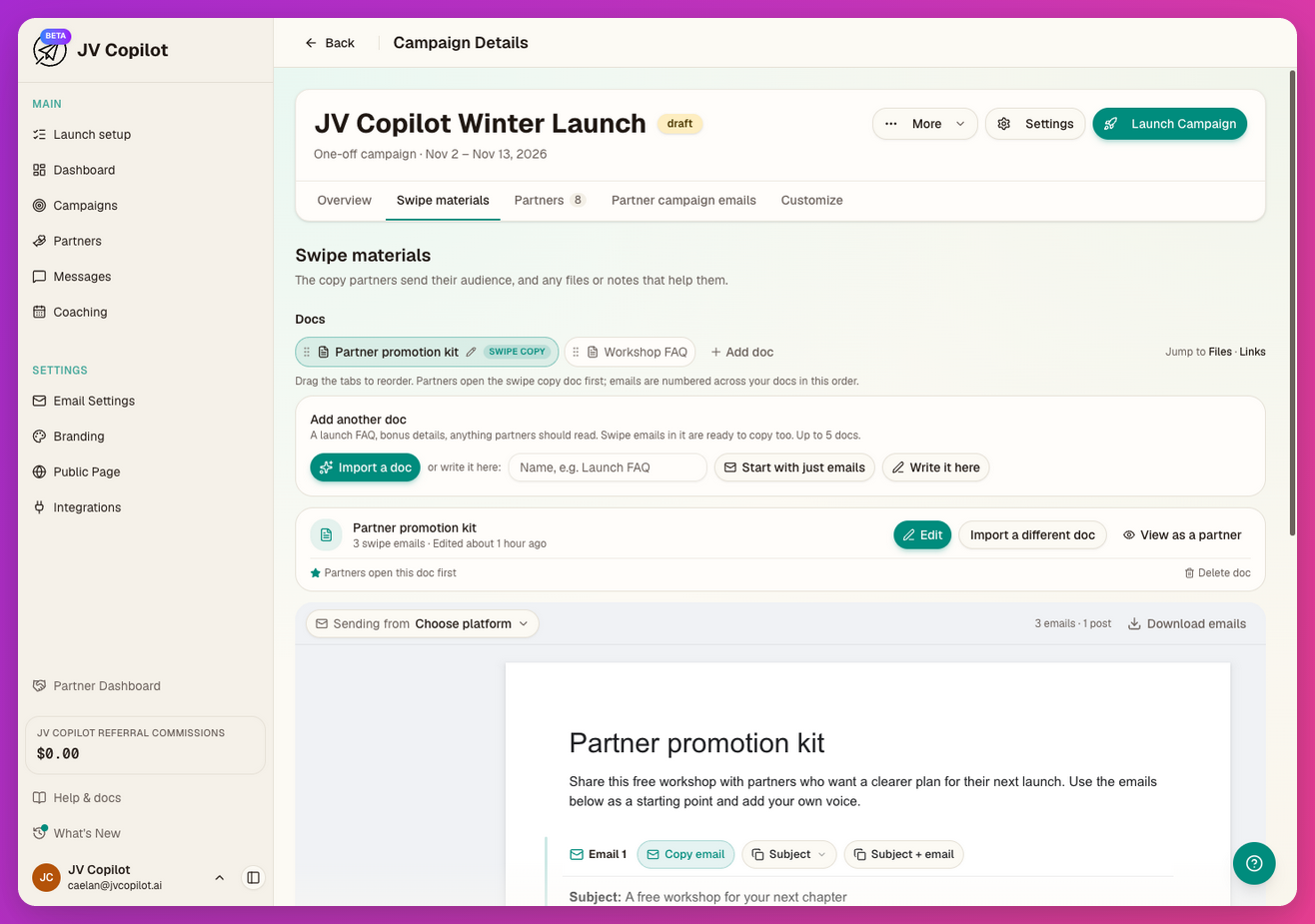
Drag a doc's tab to reorder. Click the active tab's name to rename it. The doc marked Swipe copy opens first for partners.
Open a doc's actions menu (…) for Refresh from your Google Doc, Import a different doc, Make this the swipe copy doc, or Delete doc. Refresh appears only for docs imported from a Google Doc link.
Share Files And Links
Use Upload files for images, PDFs, and ZIPs partners can download, up to 10 MB each. Use Add link for a sales page, graphics folder, video, webinar, or other resource.
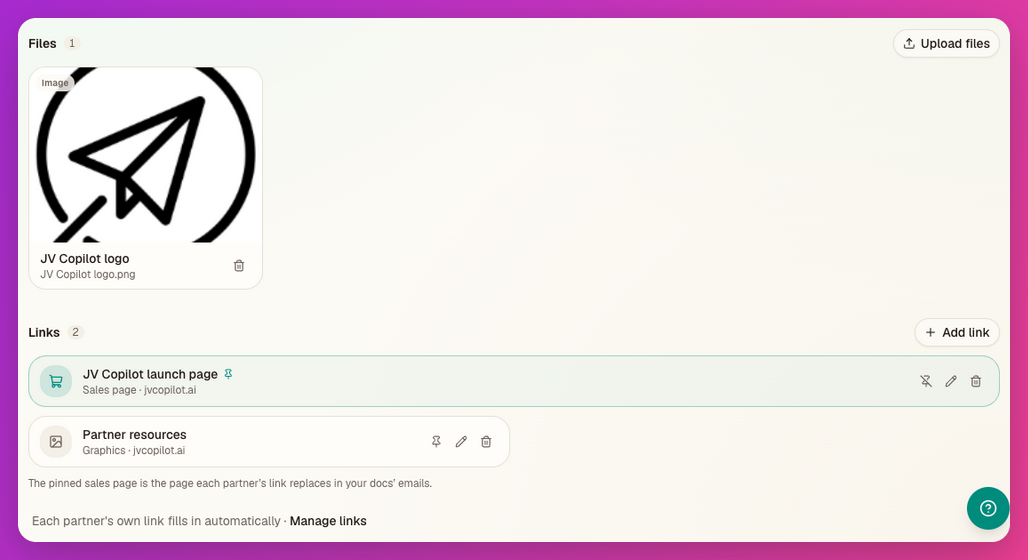
Pin the sales page whose URL should become each partner's tracking link in your doc's emails. For additional destinations, set up affiliate link types.
Check What Partners See
Click View as a partner to open the partner preview on its Swipe copy tab. Check the doc, copy controls, files, and resource links before inviting partners.
Last updated on