
Public Campaign Page
Share one page where partners can discover and join your live campaigns.
A public page gives partners one link for your campaigns. They choose a campaign and join from that page.
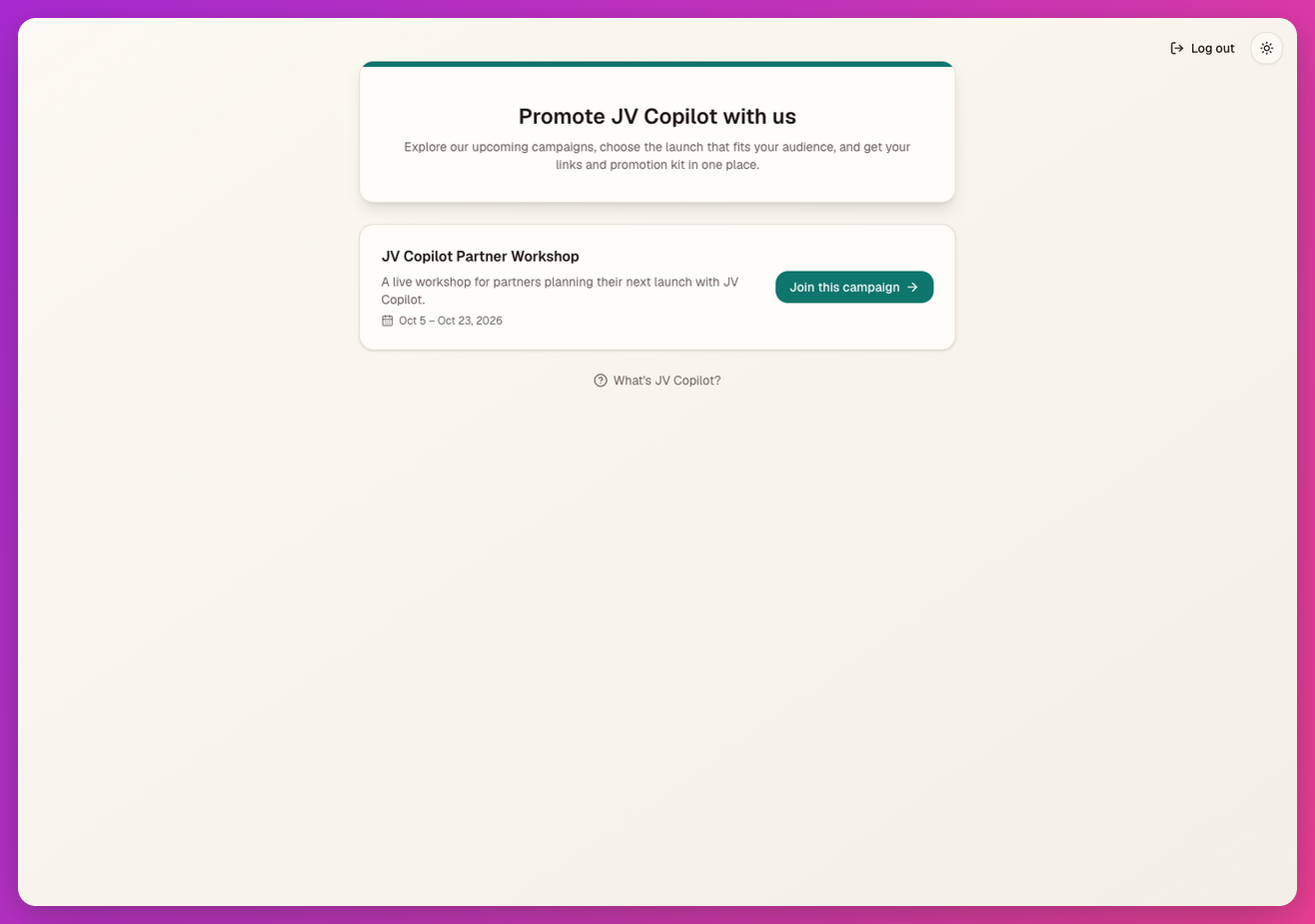
Set Up Your Page
-
On Campaigns, click Public page. Once your page exists, it is also in the sidebar as Public Page.
-
Choose your link and which campaigns it shows, then click Create page.
-
Add a headline, intro, and join-button label.
-
Add text, highlights, questions, a video, or a button under Page sections, and arrange them around your campaign list.
-
Set your color, logo, and banner under Look, or copy a look from a brand preset or campaign.
-
Click Save and use Open page to check the result.
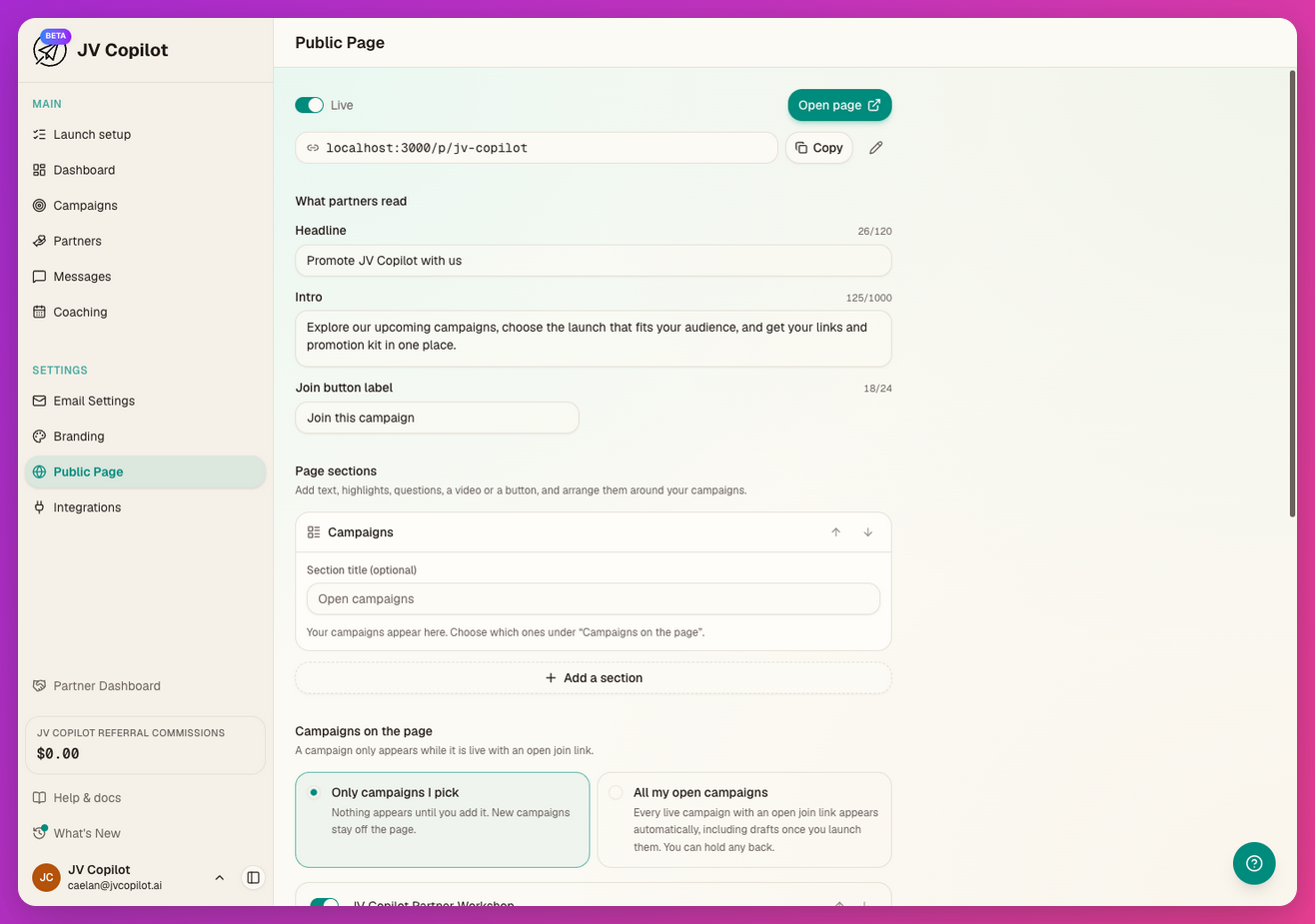
Choose Which Campaigns Appear
Under Campaigns on the page, choose Only campaigns I pick to select campaigns yourself, or All my open campaigns to include live campaigns automatically. You can hold individual campaigns back.
A campaign appears while it is live and its invite link is open. A selected draft appears when you launch it, or right away if you turn on Include draft campaigns. Turn on Go straight to a single campaign to send partners directly to its sign-up page when only one campaign is showing.
A campaign's Partners tab shows Shown on your public page or Not on your public page. Click Change to open the public page editor.
Share The Link
Copy the page URL from the top of the editor. Use it in your partner outreach when you want people to choose among your campaigns.
Last updated on