
Create A Leaderboard
Import sales, open leaderboard settings, pick a template, and export a shareable image.
Use this walkthrough once campaign results are coming in and you want a leaderboard to share.
1. Import Sales Data
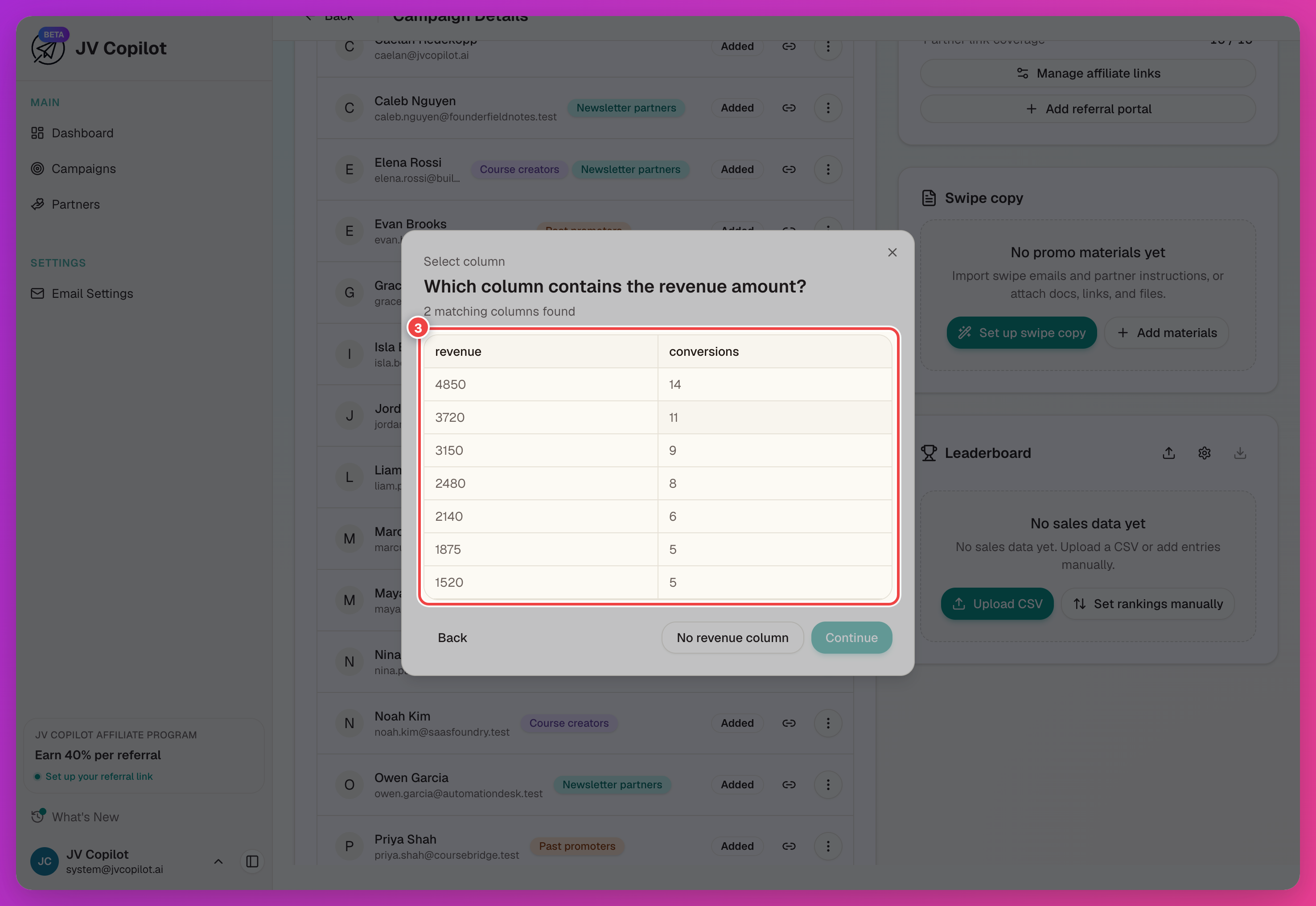
For column mapping and match review in full, see Importing Sales Data.
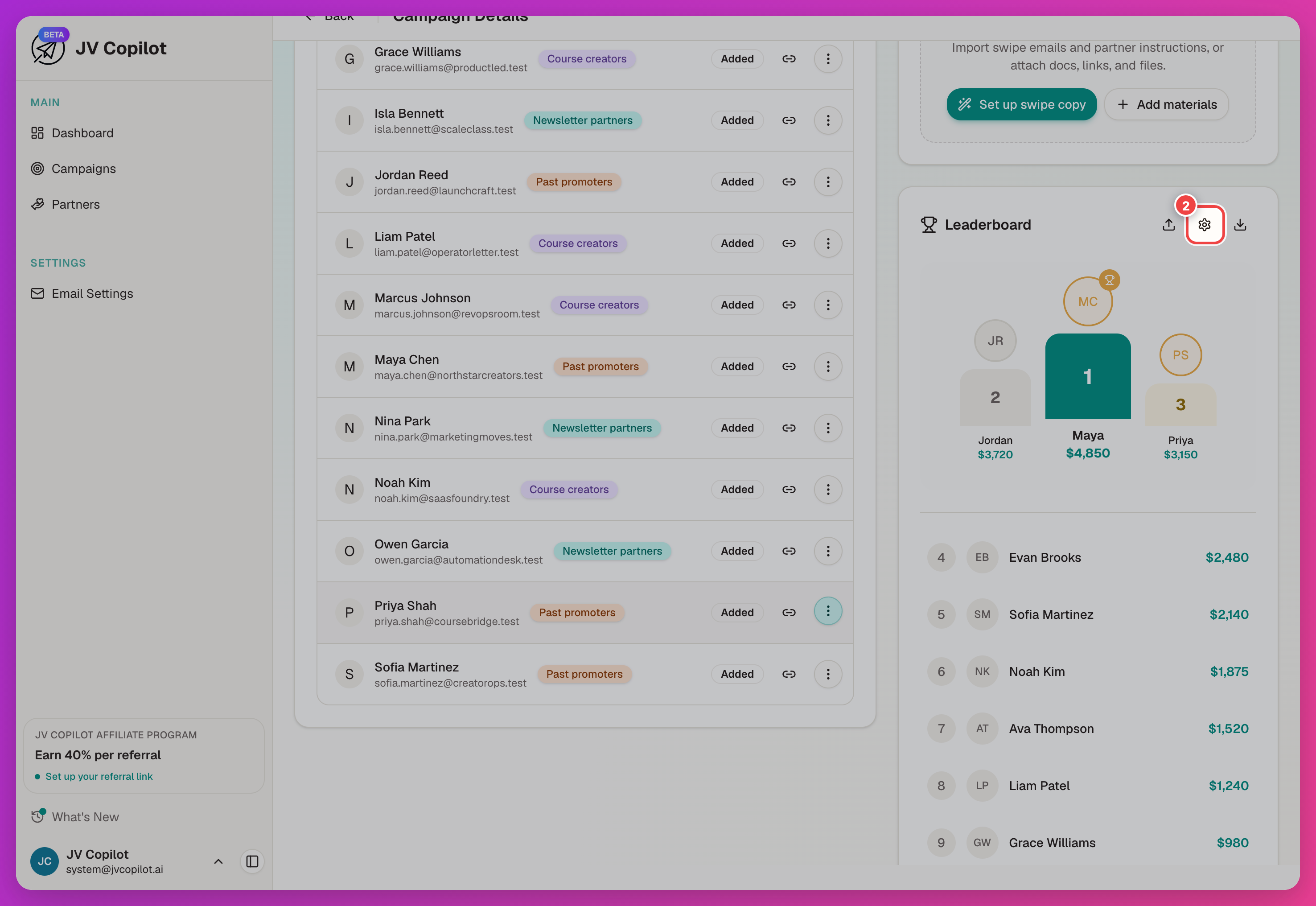
2. Open Leaderboard Settings
The Leaderboard card now ranks partners by their imported totals. Click the gear icon in the card header to open settings.
3. Pick A Template
On the Display tab, use Choose Template to pick Interactive Podium, Classic Top 3, or Classic Top 5.
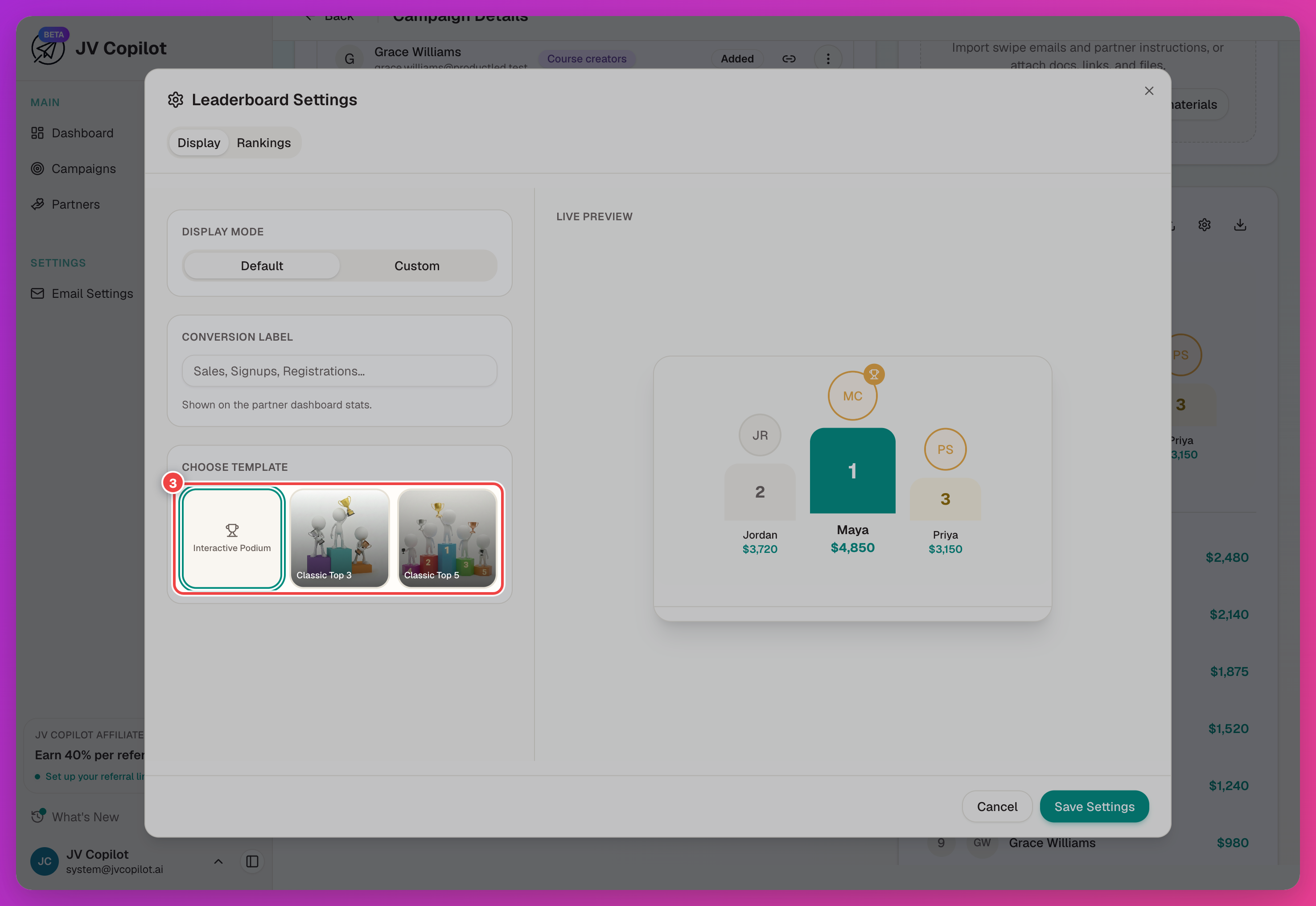
4. Check The Live Preview
The Live Preview panel updates as you change the template, Display Mode, or Conversion Label — use it to confirm names, ranks, and totals look right before sharing.
5. Export And Share
Click the download icon on the Leaderboard card header to export the image. Use View Full Leaderboard (N partners) first if you need to check anyone outside the default view.
Next Step
When this launch wraps, duplicate the campaign to reuse the setup for your next one — see Duplicating Campaigns.
Related Feature Guides
- Leaderboards — every leaderboard setting, template, and export option in depth.
- Importing Sales Data — tracking type and sales imports.
- Campaign Stats & Calendar — the stats card and promo calendar.
Last updated on