
Leaderboards
Read the leaderboard card, customize display settings and templates, and export a shareable image.
The leaderboard ranks campaign partners by their tracked results.
The Leaderboard Card
The Leaderboard card ranks partners by revenue or signups, depending on the campaign's tracking type. Its header holds the three leaderboard actions (1): the upload icon (Import Sales Data), the gear icon (settings), and the download icon (export image). Below them sits the ranked board itself (2), and under the visible rankings a View Full Leaderboard (N partners) link shows everyone. That full-leaderboard view mirrors whichever template or custom image you've chosen in settings, and shows signup counts instead of dollar amounts for signup-tracked campaigns.
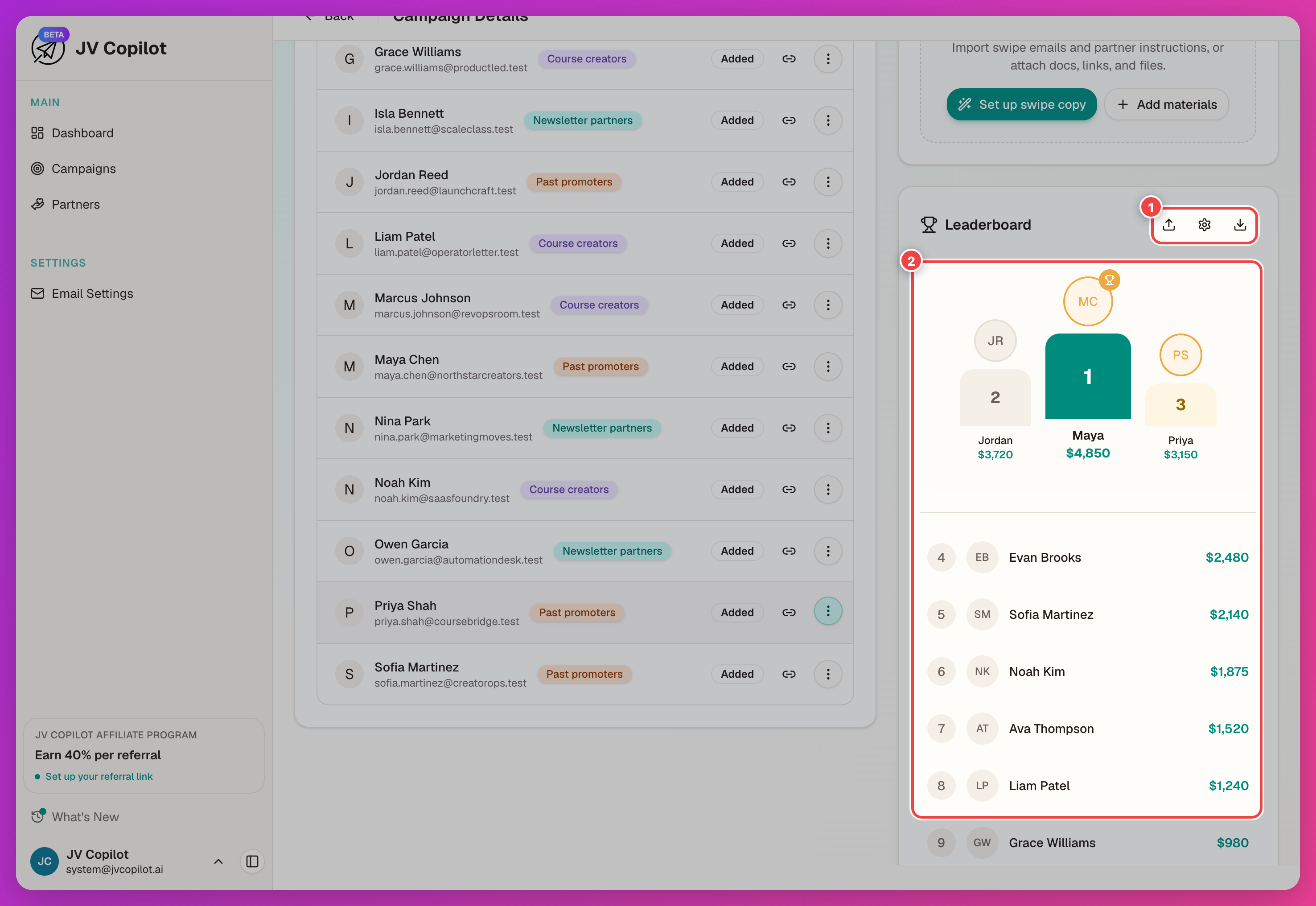
Import sales data before sharing a leaderboard — see Importing Sales Data.
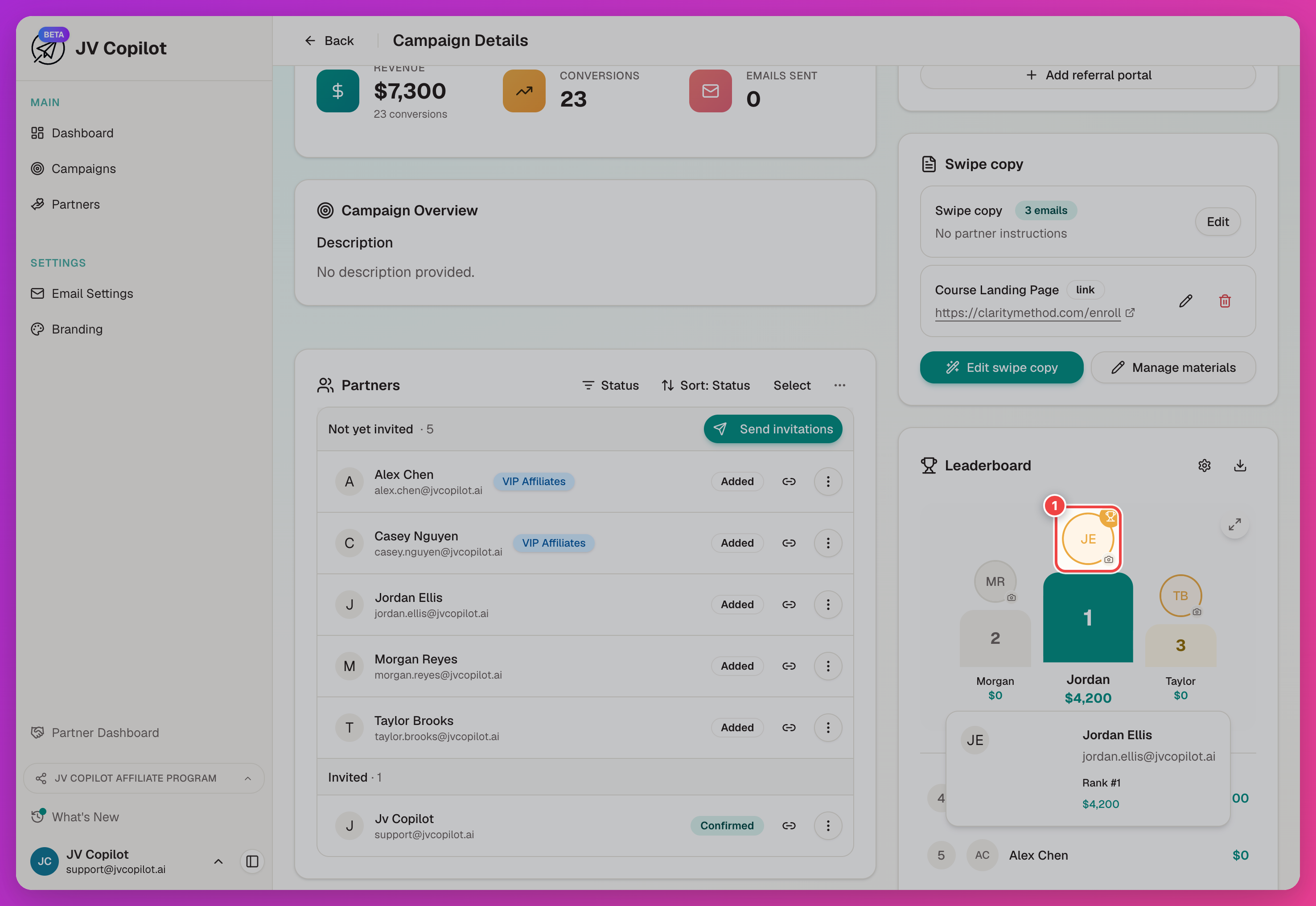
Hover a partner's avatar on the board to reveal a camera icon — this sets or replaces that partner's photo without leaving the leaderboard. See Partner Headshots for how an owner-set photo relates to the partner's own upload.
Leaderboard Settings
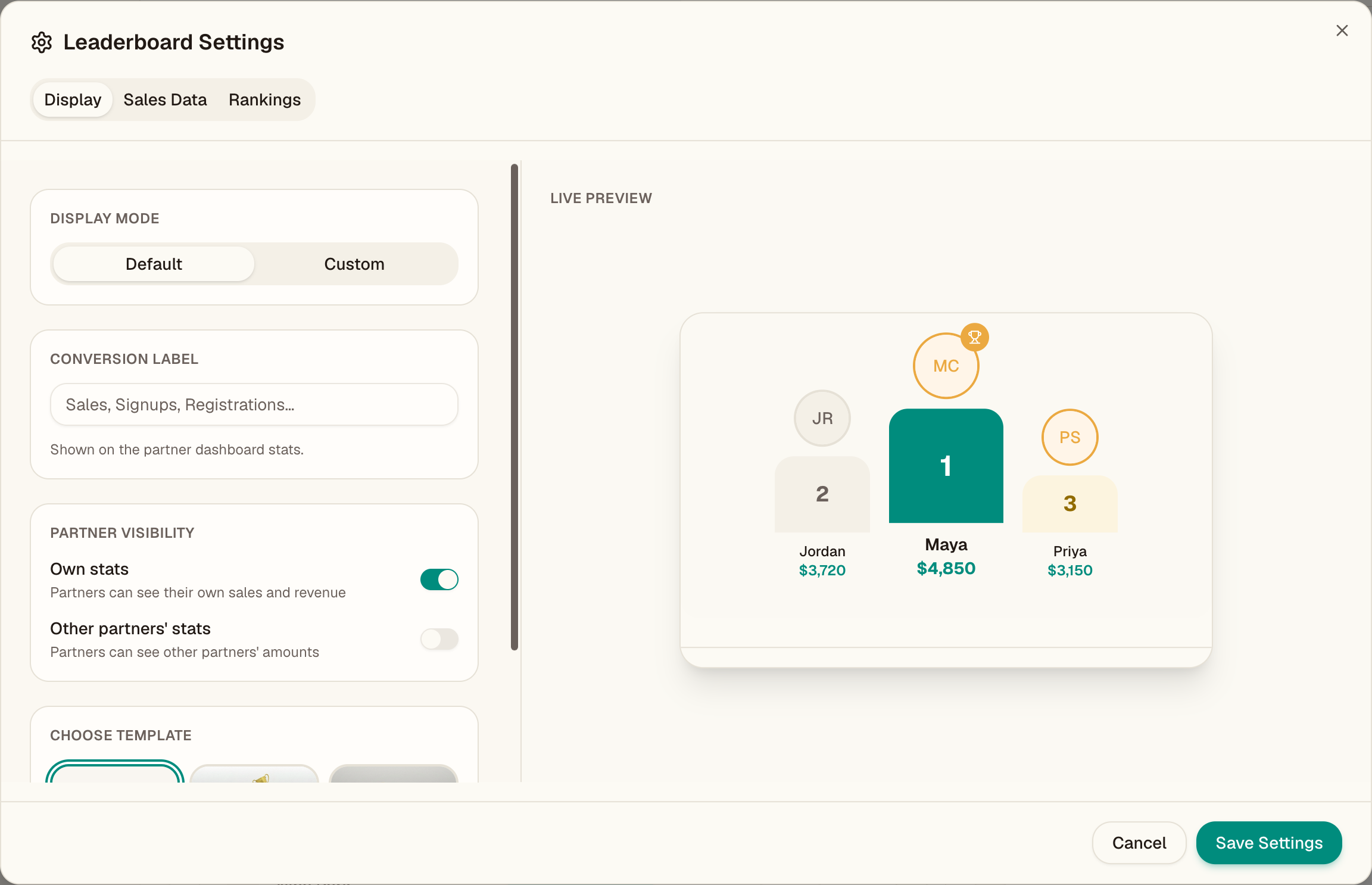
Click the gear icon on the Leaderboard card to open settings, split into Display, Sales Data, and Rankings tabs.
Display
- Display Mode — Default or Custom.
- Conversion Label — the label shown on partners' dashboard stats (for example, "Sales" vs. "Sign-ups").
- Partner Visibility — two toggles controlling what partners see on their own dashboard:
- Own stats — whether partners can see their own sales and revenue (on by default).
- Other partners' stats — whether partners can see other partners' amounts (off by default).
- Choose Template — Interactive Podium, Classic Top 3, or Classic Top 5.
- Live Preview — updates as you change the settings above, so you can check names, ranks, and totals before sharing.
Sales Data
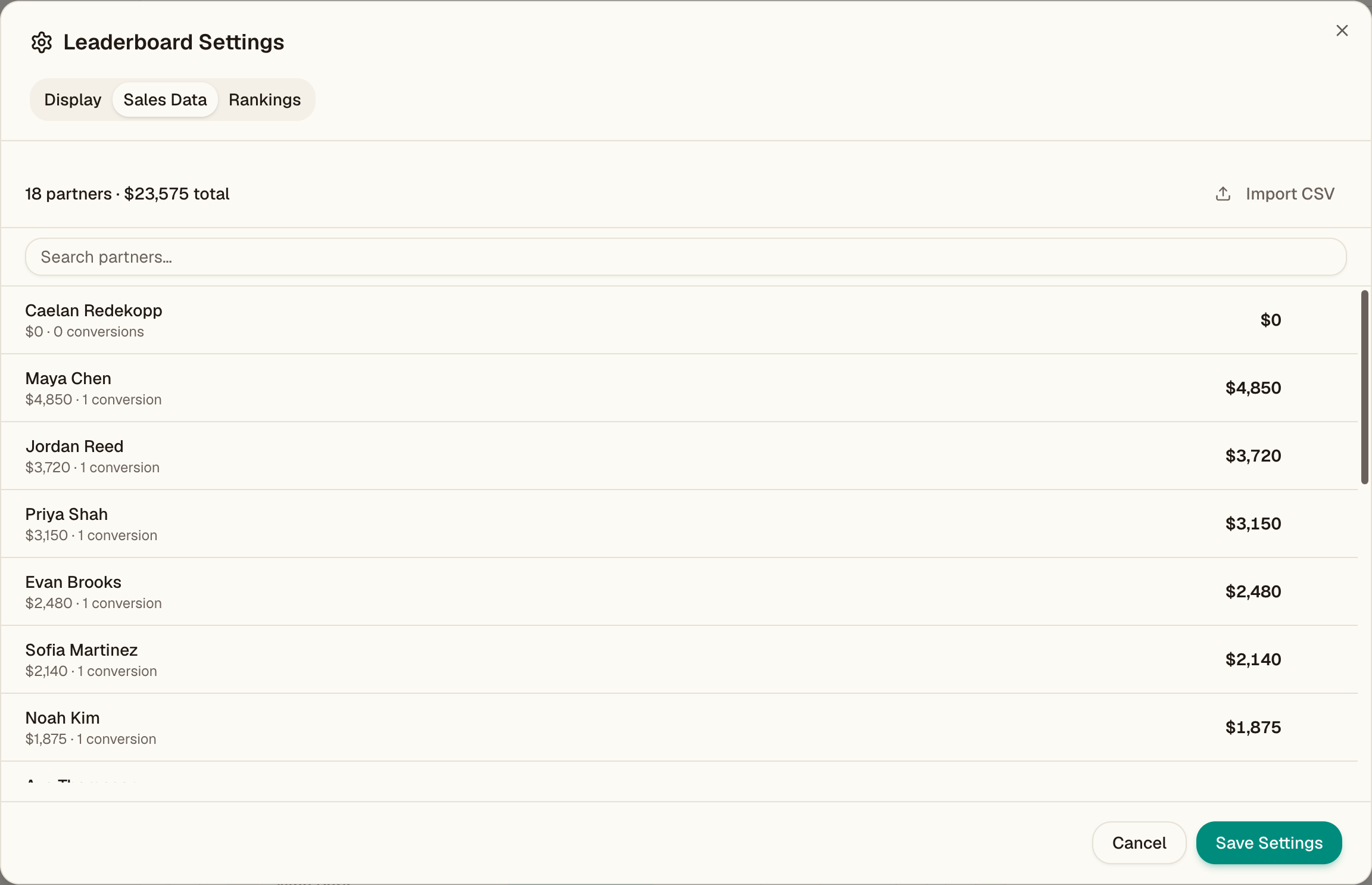
View and edit individual partner totals without importing a CSV. Each partner row shows their current revenue and conversions — click the edit icon to update them inline. Use this for quick corrections or when you're tracking a handful of partners manually.
For bulk imports, use Importing Sales Data instead.
Rankings
Controls how partners are ordered on the board. Hover a partner's avatar here too to set or replace their photo — see Partner Headshots.
Exporting The Image
Click the download icon on the Leaderboard card header to export a shareable image. Check the Live Preview in settings first — it shows exactly what the exported image will look like.
For a guided walkthrough, see Create A Leaderboard.
Last updated on