
Invite A Team Member
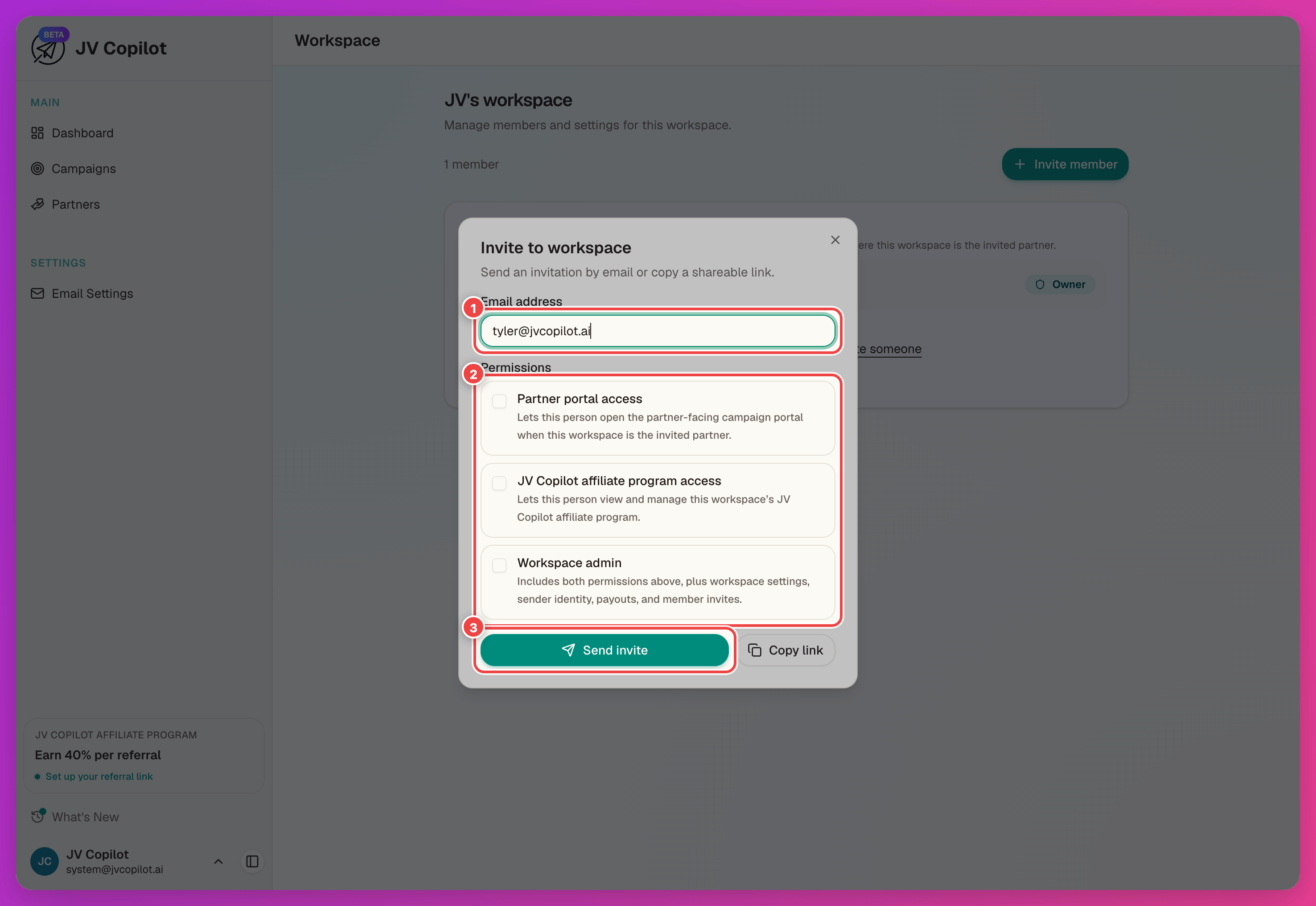
Send someone an invite to your workspace — by email or shareable link — and get them working alongside you.
Invite someone to your workspace when they should help run your campaigns — a VA, a launch manager, a client. Invites are free, and each person signs in with their own account.
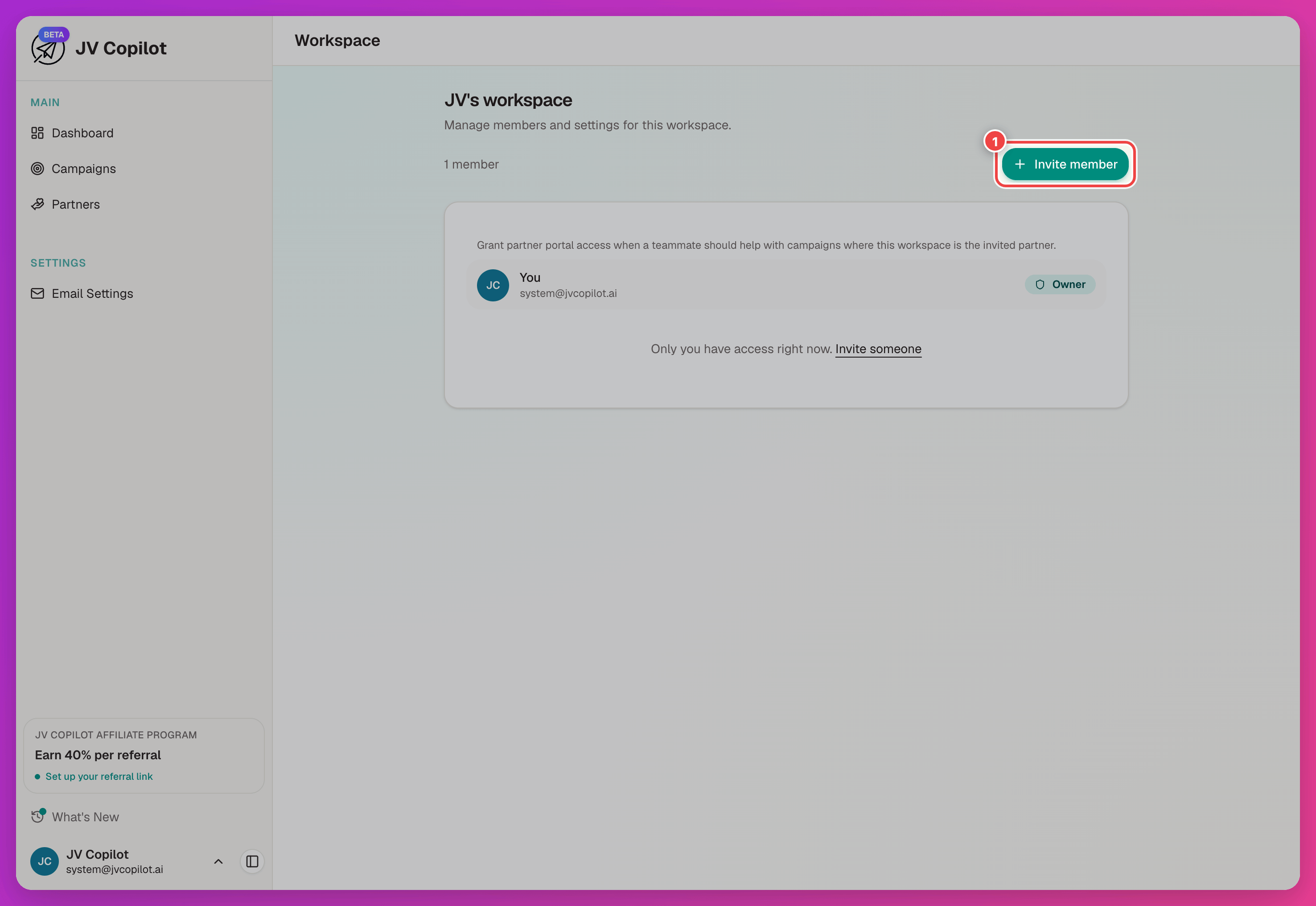
Open Your Workspace Page
This page shows your workspace name and everyone who's already a member.
Send The Invite
While It's Pending
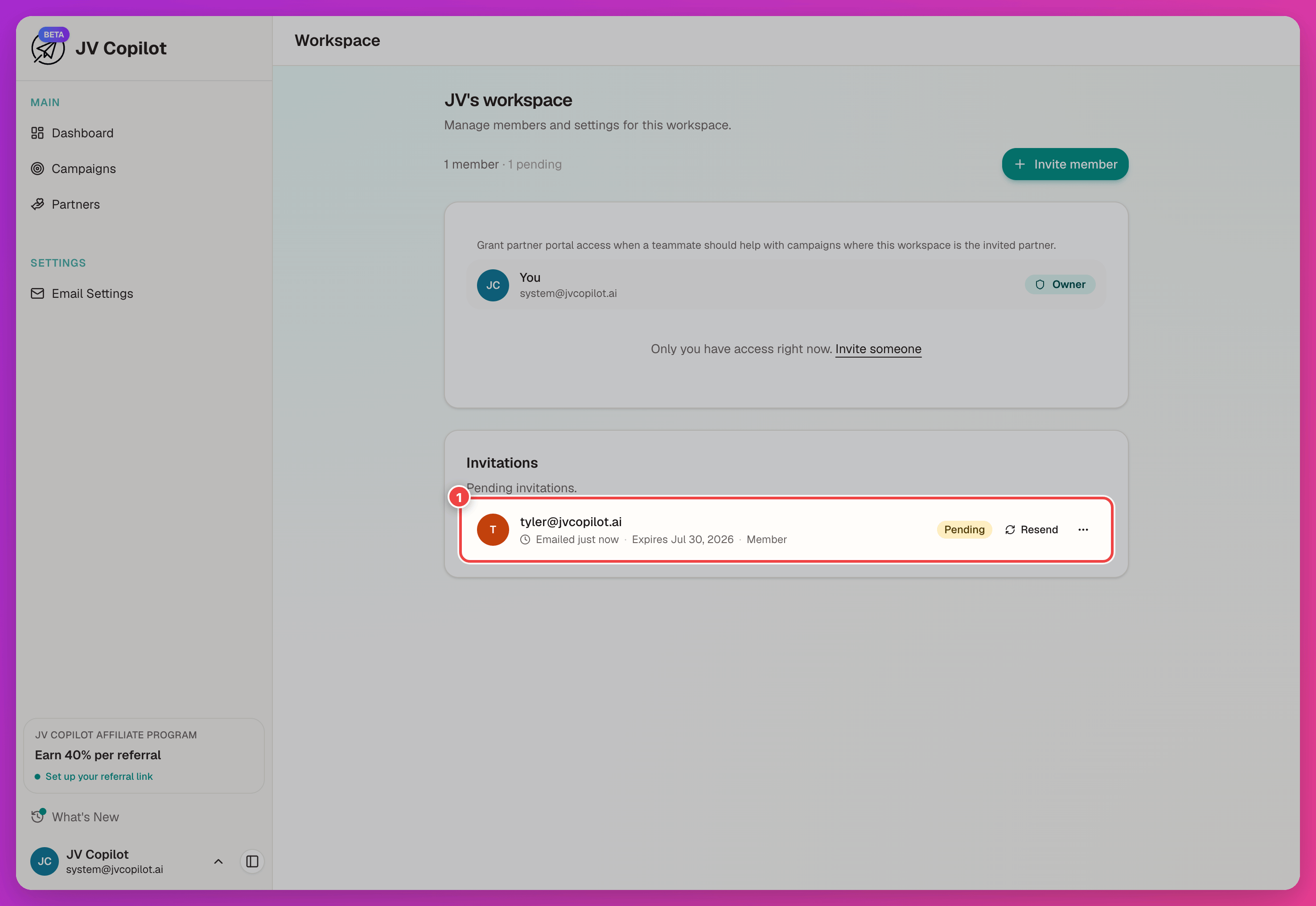
The invite appears under Pending invitations on the Workspace page until it's accepted.
What The Invitee Sees
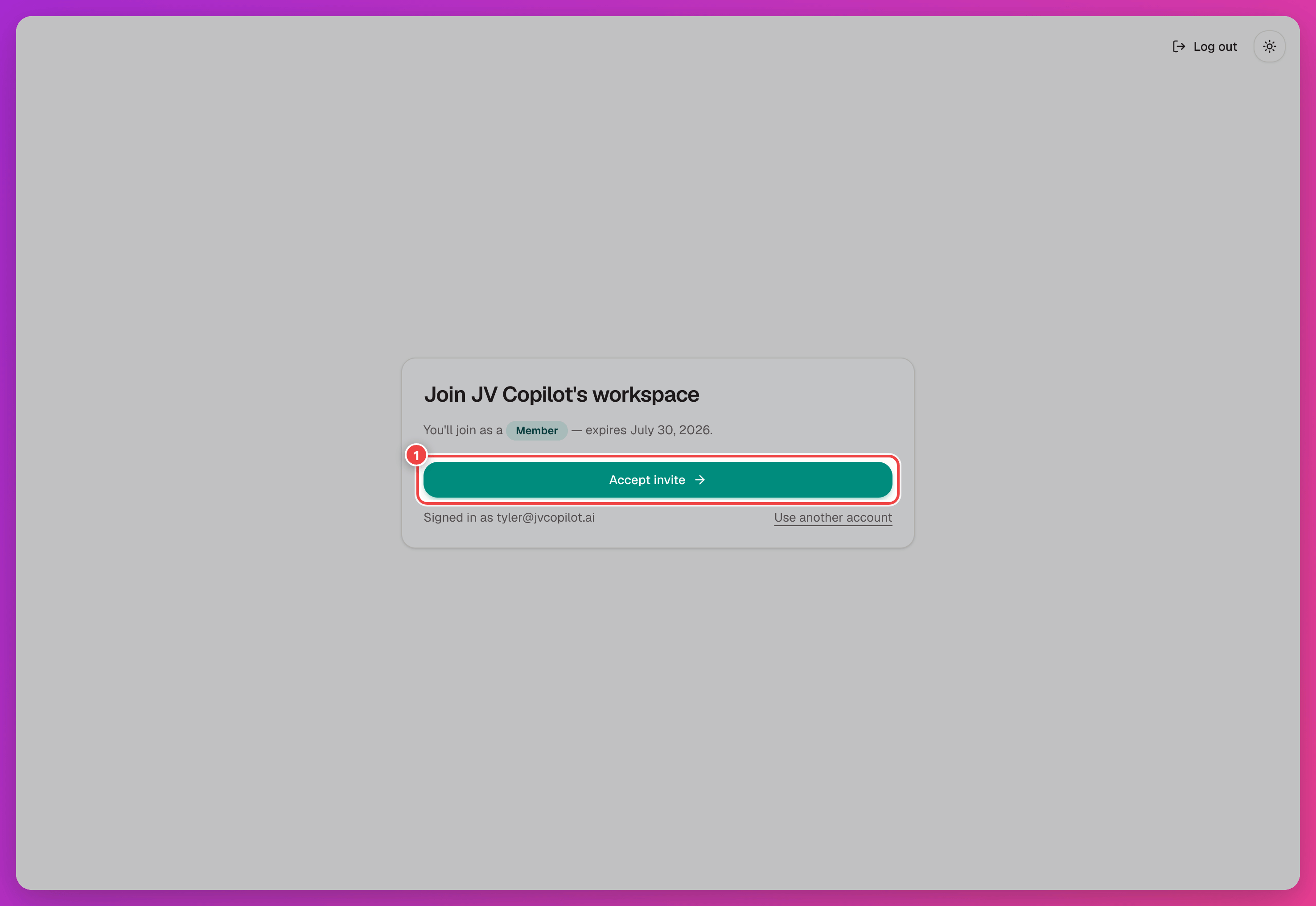
They get an email that opens an acceptance screen. They sign in (or create an account), then click Accept invite.
The emails have to match
The invite only works for the email address you sent it to. If the invitee uses a different address, send a fresh invite to that one.
After They Accept
They appear in your member list, and your workspace shows up in their workspace switcher under Shared with you.
What they can see and do — and changing or removing access — is covered in Team Members. If they accepted but can't find your workspace, see Billing & Access Issues.
Last updated on