
Your Dashboard
A tour of your affiliate link, swipe copy, stats, and send schedule.
Your dashboard holds your tracking link, your ready-to-send emails, and your promo schedule. Haven't confirmed your spot yet? See Getting Started.
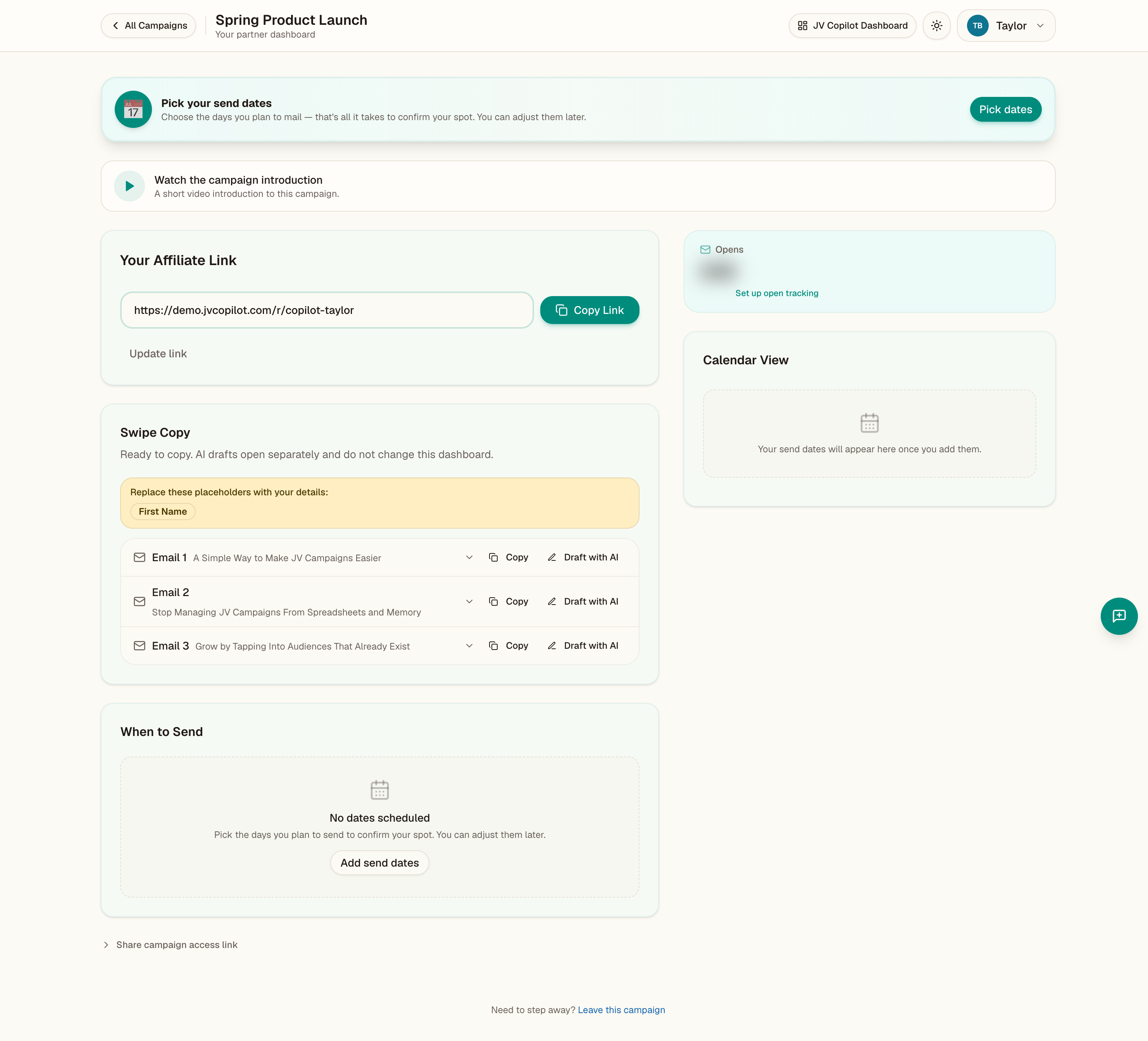
If the campaign owner added an introduction video, you can watch it from your dashboard.
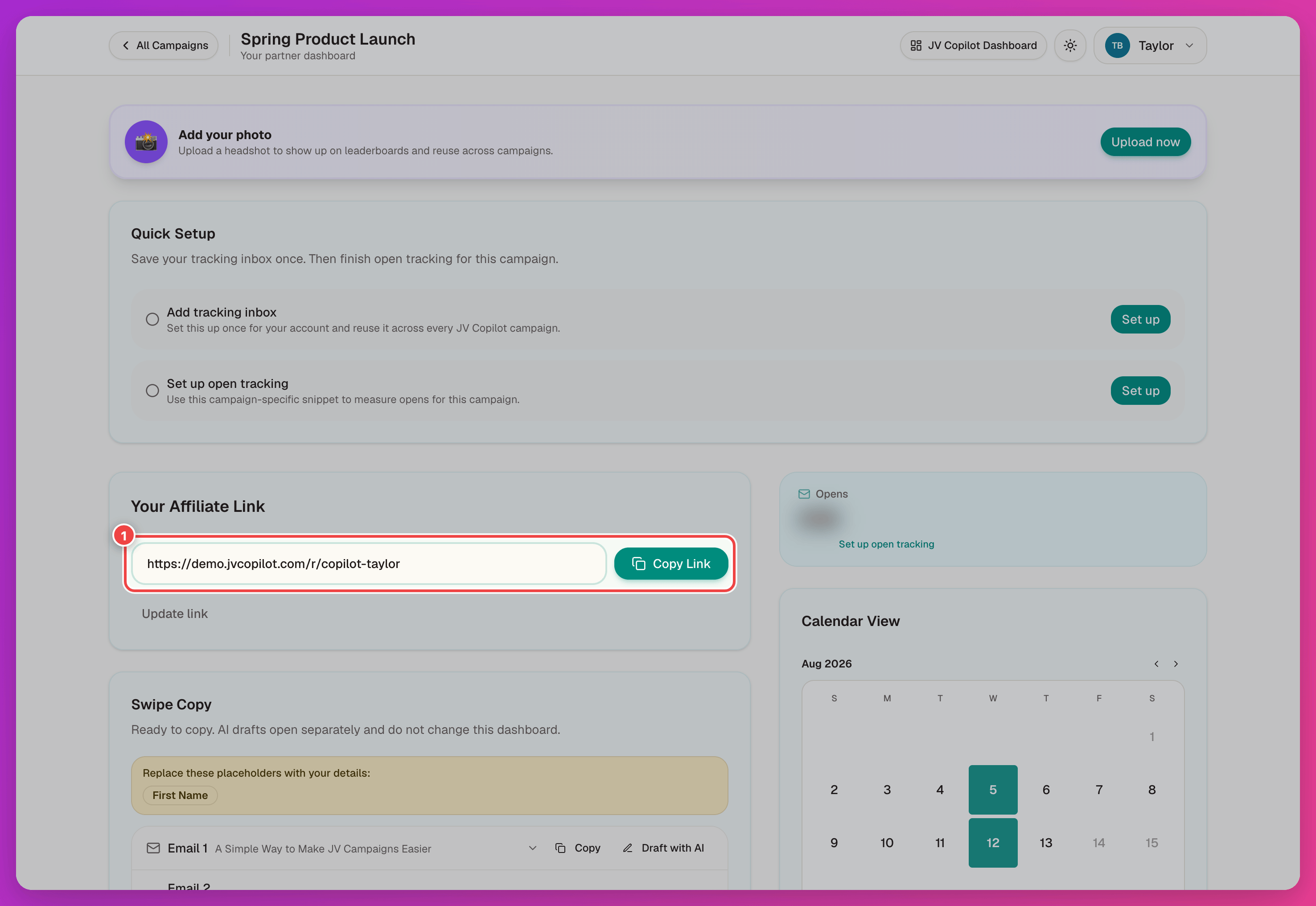
Your Affiliate Link
Near the top of your dashboard is Your affiliate link, with a Copy Link button. This is the link that credits results to you — use it anywhere you promote the campaign. Update link replaces it if you need a new one.
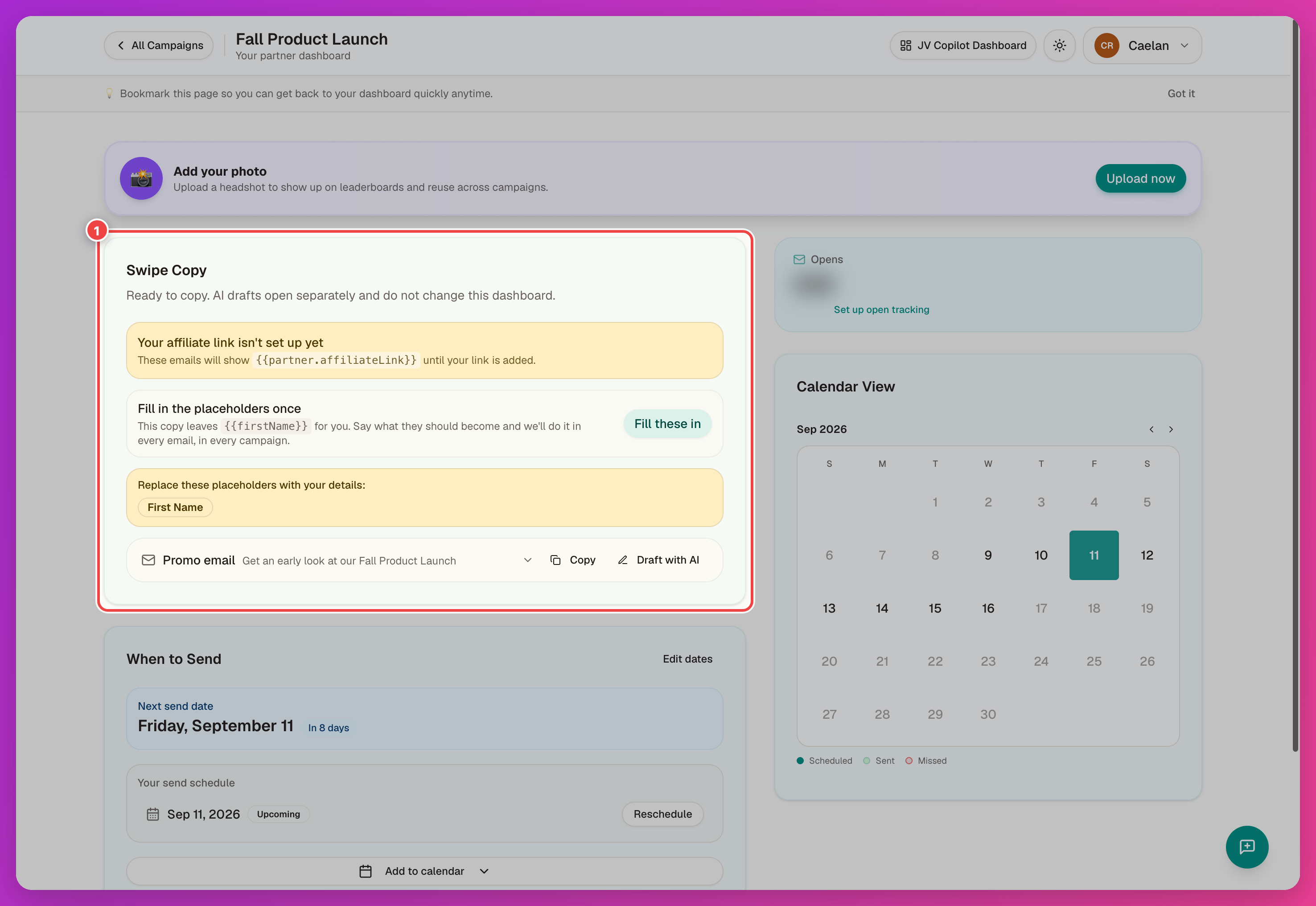
Swipe Copy
The Swipe Copy card holds your ready-to-send emails, with your affiliate link already filled in. Copy them as-is or open them with Draft with AI — see Promo Emails.
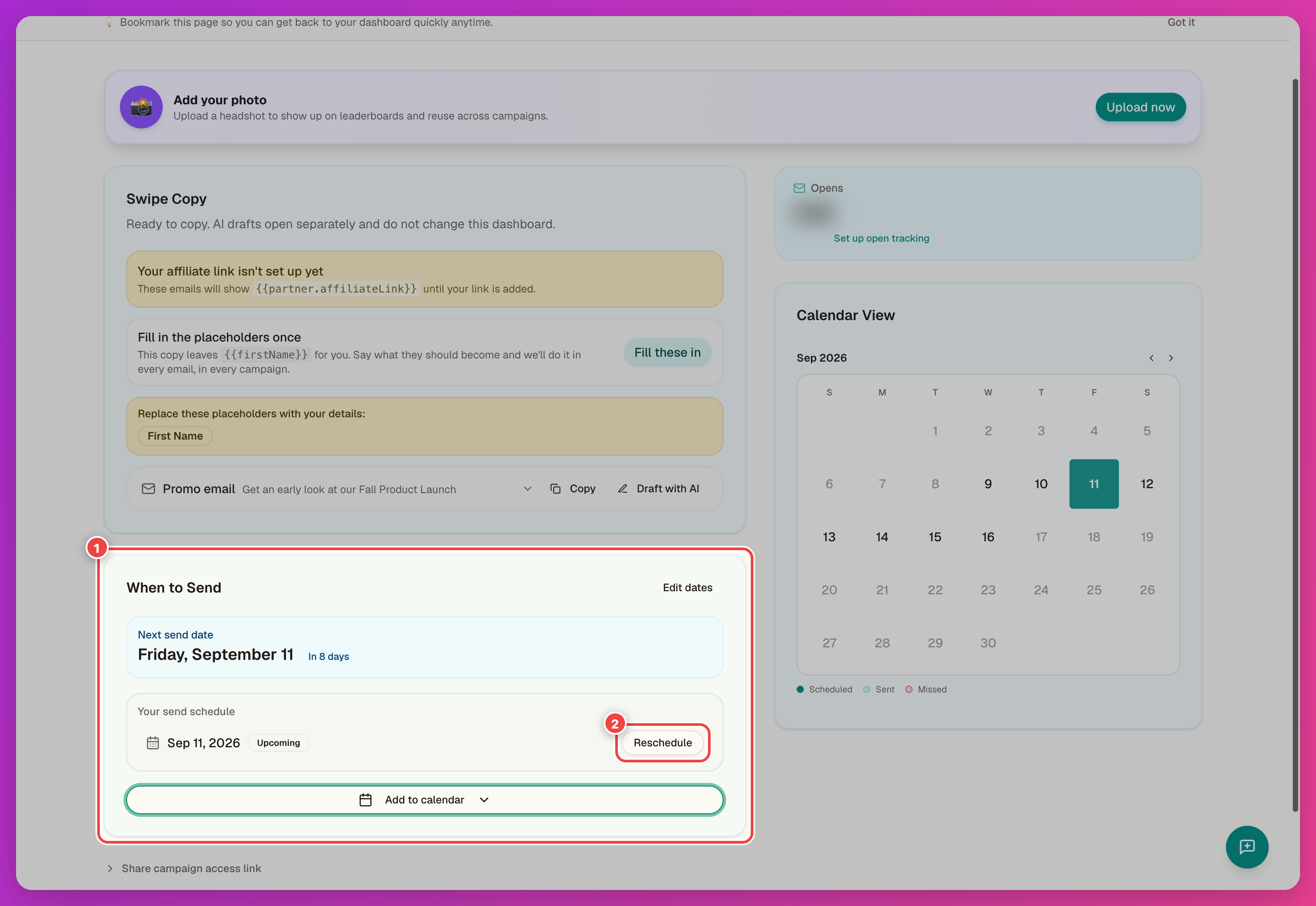
When To Send
The When to Send card shows your next send date, your full send schedule, and a Reschedule button next to each date. Use Edit dates to change your schedule, or Add to calendar to sync it. See Calendar & Reminders for details.
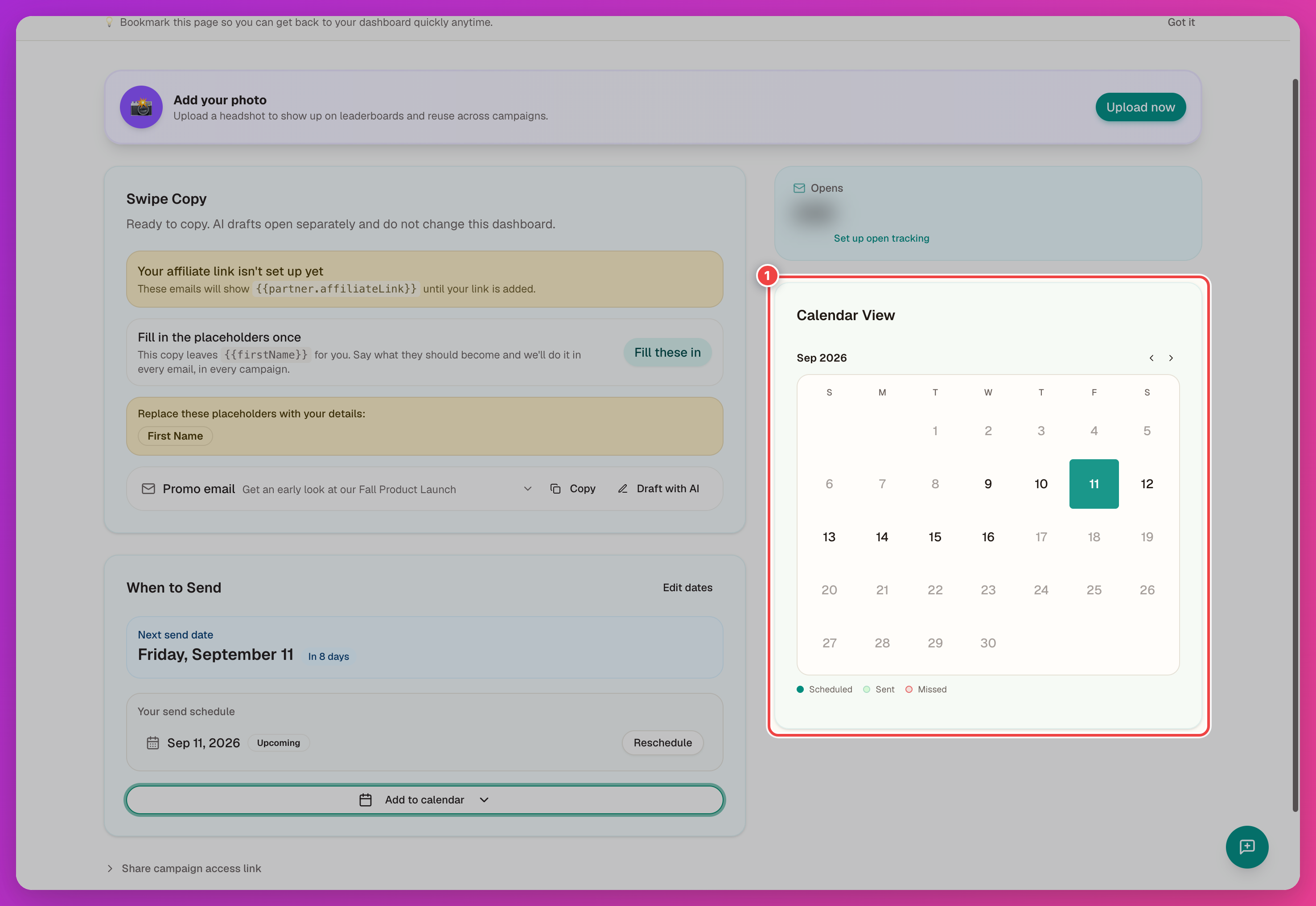
Calendar View
Below that, Calendar View shows a month grid with your send dates marked Scheduled, Sent, or Missed.
Other Options
Use Share campaign access link to copy a link to this campaign. To stop participating, click Leave this campaign in the footer.
Last updated on