
Promo Emails
How to use the prepared swipe emails to promote the campaign.
The Swipe Copy card on your dashboard has emails ready to send — written for the campaign, with your affiliate link already in them.
1. Open Swipe Copy On Your Dashboard
Each email is listed with its subject line and can be expanded to read in full.
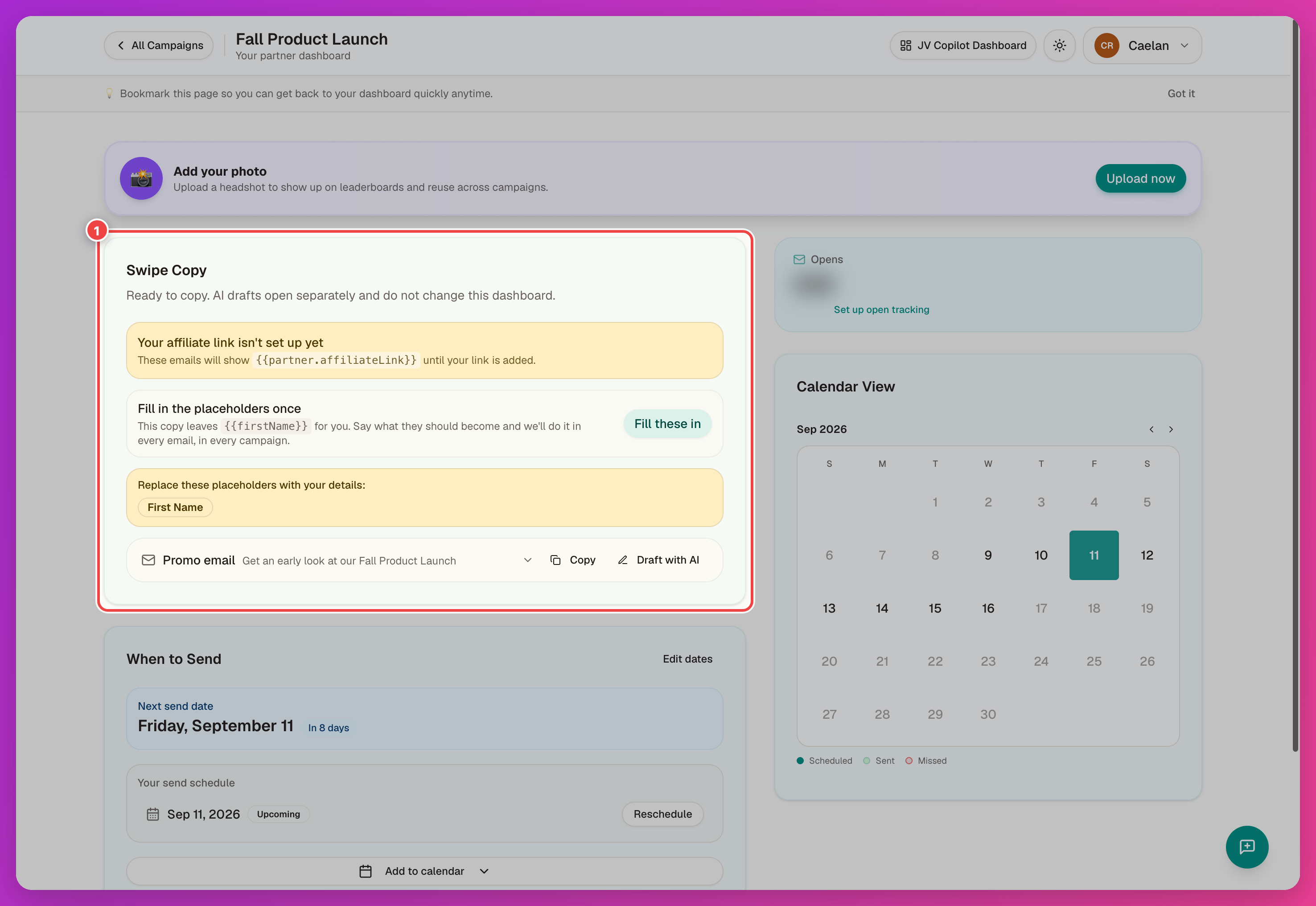
2. Fill In Placeholders Once
Some emails include placeholders like {{firstName}}. These represent each recipient's details. Tell JV Copilot which email platform you use, and it will replace the placeholders with the right merge tags.
A setup dialog opens the first time you copy an email with unresolved placeholders:
- Pick your email platform — GoHighLevel, ActiveCampaign, Kajabi, Mailchimp, Kit, Klaviyo, MailerLite, or HubSpot — and JV Copilot fills in that platform's own merge tag syntax for each field.
- If your platform is not listed, choose Somewhere else and enter the merge tag for each field. Leave a field blank to fill it in manually later.
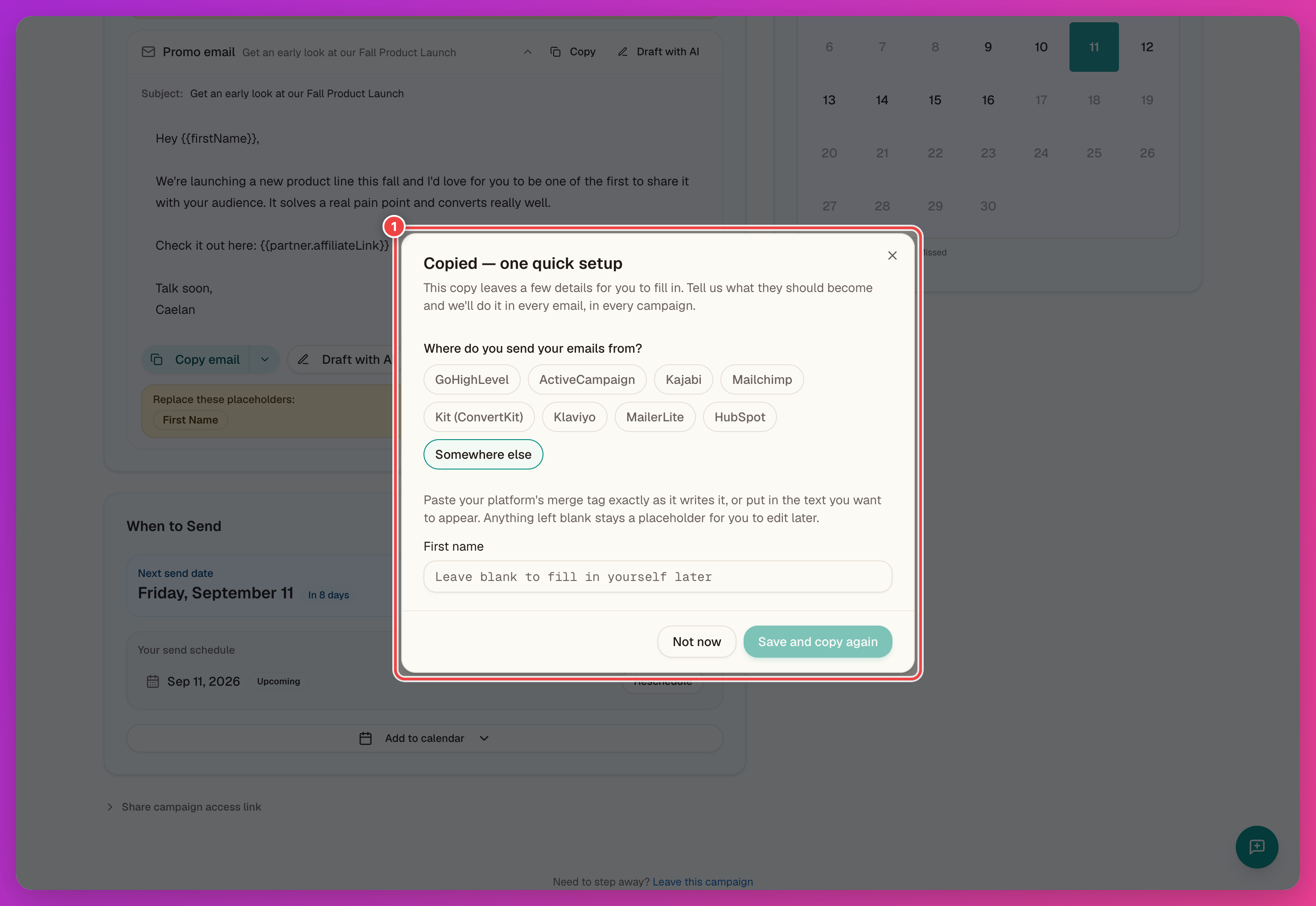
Click Save and copy again to save your choices and copy the updated email. Click Not now to skip the setup. You can open it later from the Swipe Copy card.
You only need to complete this setup once. If you are signed in, your choices apply to every campaign you promote. If you use a shared campaign link without signing in, they apply only to that campaign.
After you save, the Swipe Copy card shows how each placeholder will be replaced. Use Change to switch platforms or update a value. If you opened a shared link while signed out, sign in before changing choices saved to your account.
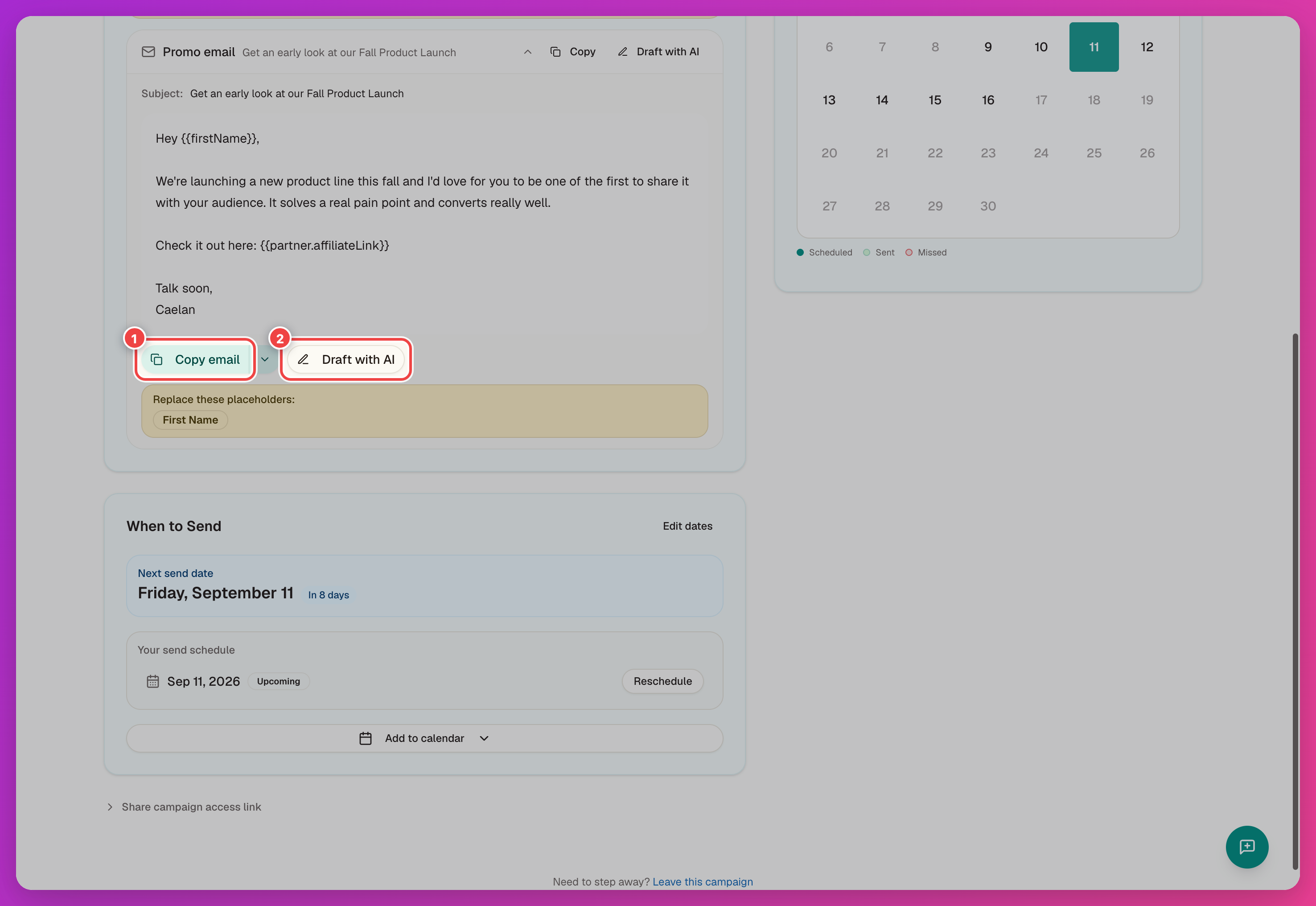
3. Copy Or Draft With AI
- Copy email — copies the email so you can paste it into your email platform. If any placeholders still need values, the setup dialog opens first.
- Draft with AI — creates an editable draft without changing the original email on your dashboard.
4. Send On Your Chosen Dates
Send each email on the date you picked when you confirmed. Multiple emails are numbered in send order. To check or change dates, see Calendar & Reminders.
Last updated on