
Calendar & Reminders
Sync your send dates, reschedule, and keep your promo on track.
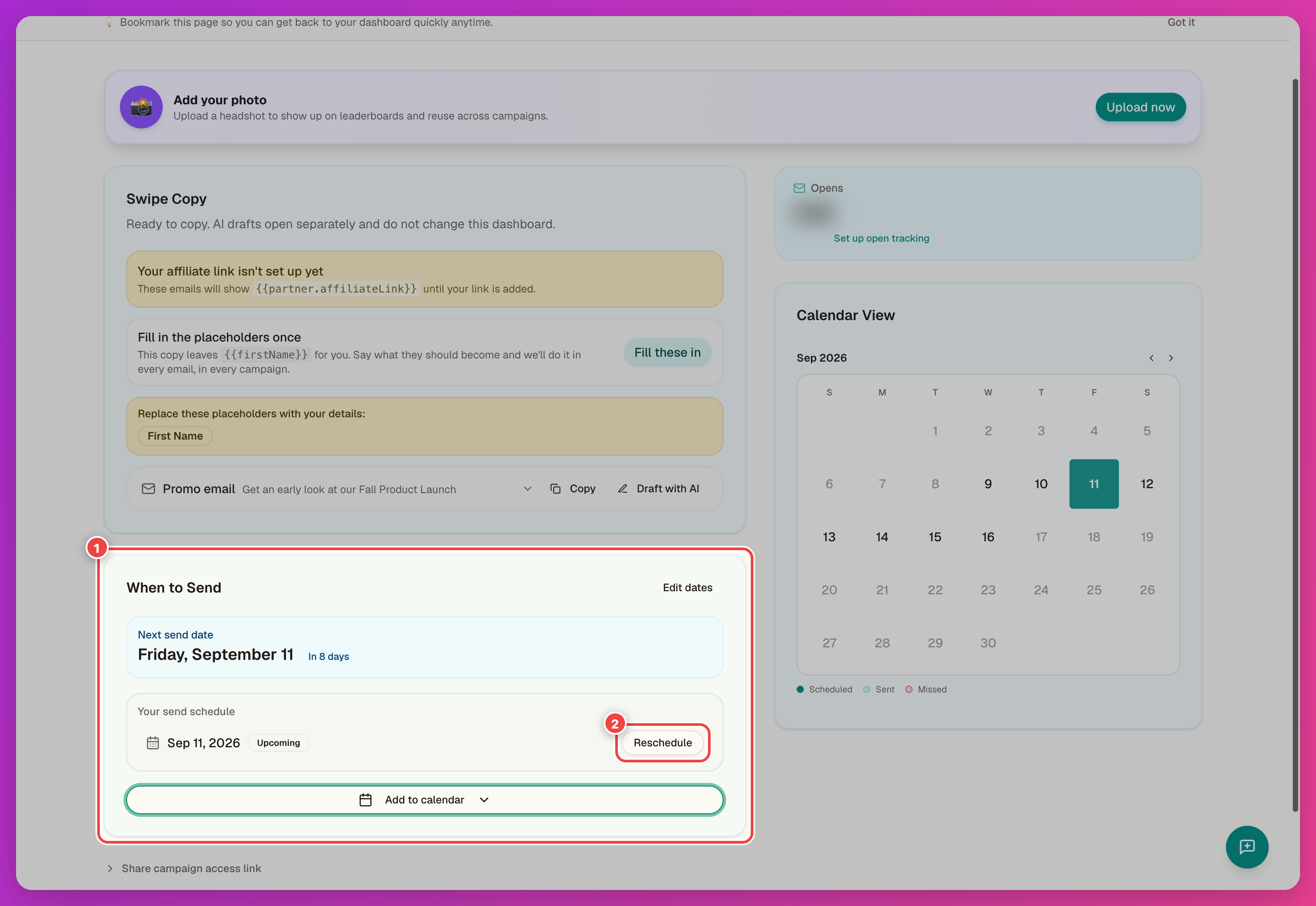
Your send dates live on your dashboard, in the When to Send card.
Your Send Schedule
The When to Send card shows your next send date and full schedule. Use Reschedule beside one date, or Edit dates to change the full schedule.
Syncing To Your Calendar
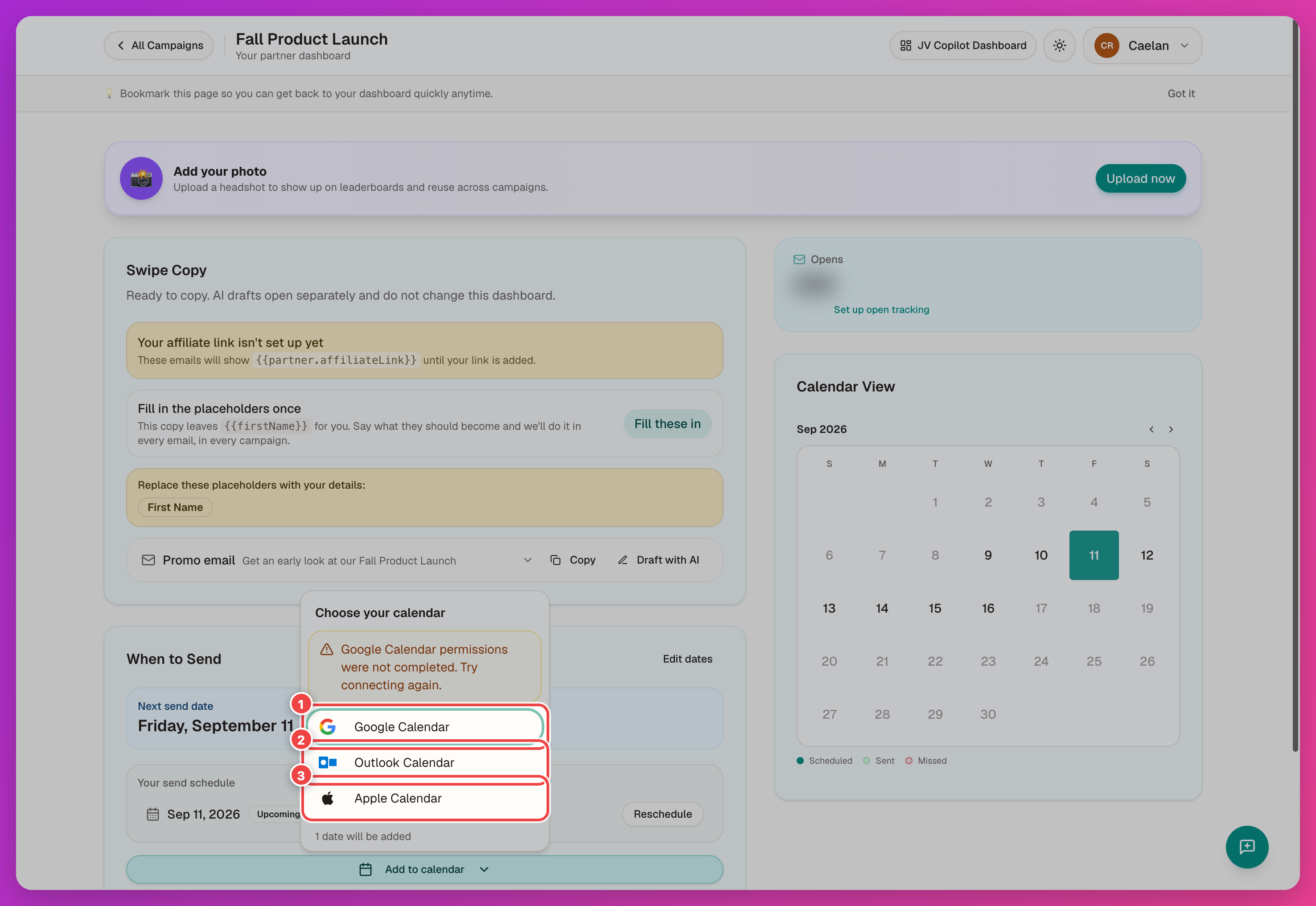
Click Add to calendar to open the calendar chooser and pick where to add your send dates:
- Google Calendar — connects through your Google account; the first time, it asks for calendar permissions.
- Outlook Calendar
- Apple Calendar
Once synced, reminders show up in the calendar you already use.
Rescheduling A Date
Click Reschedule next to the date in the When to Send card and pick a new date inside the campaign window. Your calendar reminder updates on the next sync.
Checking Your Status
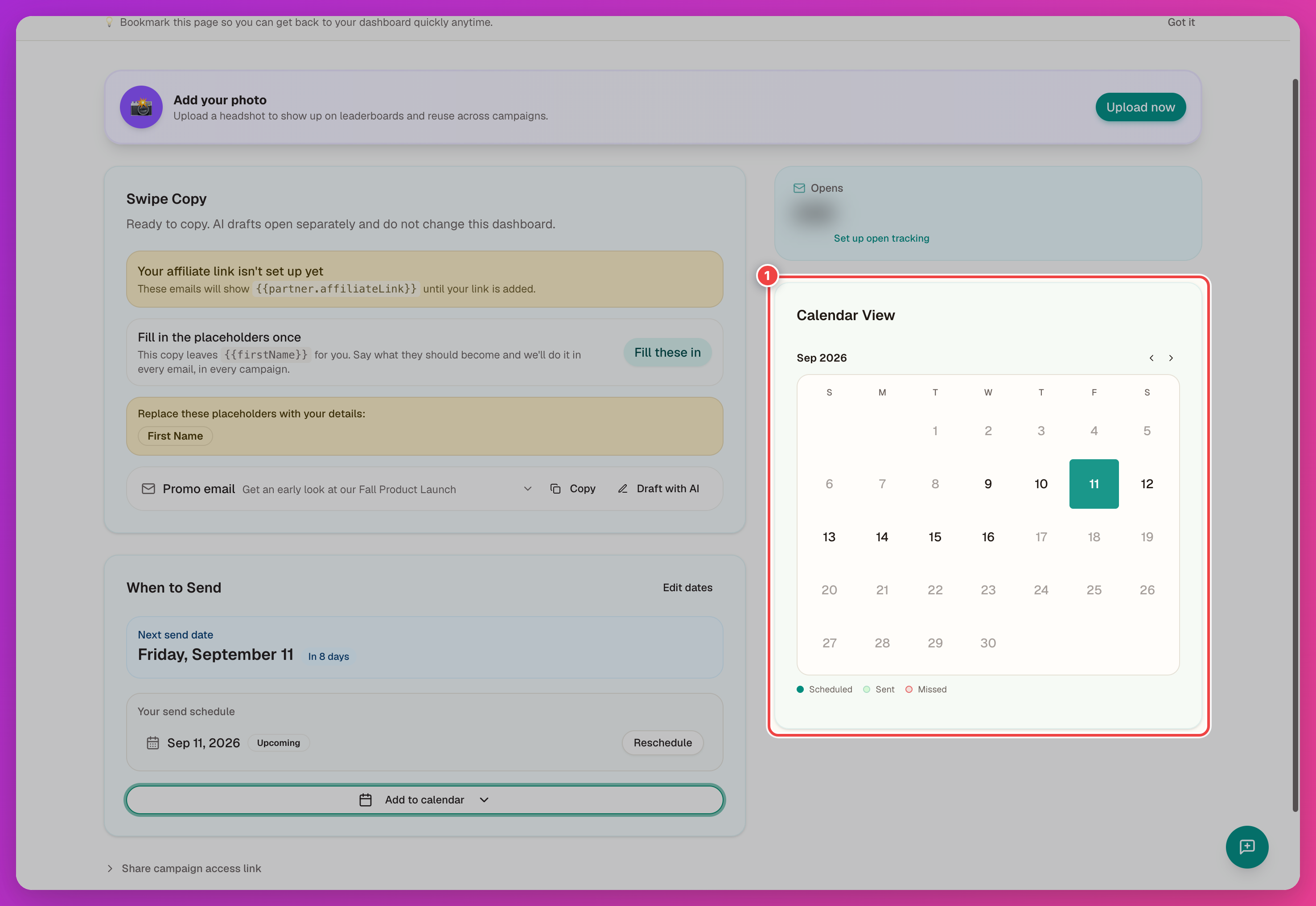
The Calendar View on your dashboard shows a month grid with each send date marked Scheduled, Sent, or Missed.
Last updated on